The Windows Update service is a simple and reliable way to make sure your PC stays updated. Windows Update provides your PC with security and reliability updates, drivers, service packs, and feature updates. And with Windows Update, you can turn on Automatic Updates so it continuously checks for, downloads, and installs most updates automatically for you.
Note: To help prevent unexpected changes in how your PC works, Microsoft may sometimes ask you to accept an update before installing it, even if you have automatic settings selected.
Use Windows Update with Automatic Updates
The Windows Update service provides a single location for all the updates for your Windows XP–based PC. And by turning on the Automatic Updates feature, you can make sure your PC has High-priority updates including security and reliability updates, drivers, service packs, and feature updates. Automatic Updates routinely checks for the latest High-priority updates for your PC and then downloads and installs them for you automatically.
Note: The Automatic Updates feature will only check for High-priority updates. Automatic Updates will not download and install Optional updates. You will need to return to the Windows Update site regularly to select and install Optional updates.
If you don't have Automatic Updates turned on, Microsoft recommends you turn it on when you visit the Windows Update site.
To turn on Automatic Updates in Windows XP (SP2)
1- Click Start, and then click Control Panel.
2- Click Automatic Updates.
3- Choose Automatic (recommended).
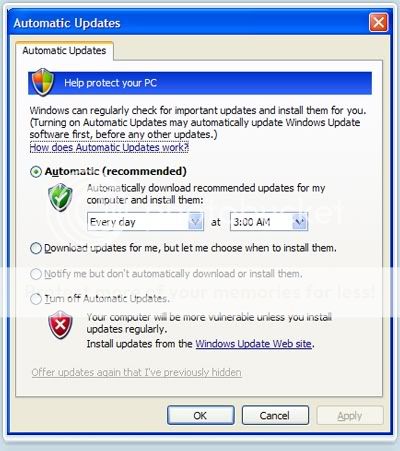
Note: You can also turn on Automatic Updates from the Windows Update website.
To update your PC now
1- Go to the Windows Update website.
2- Then, do one of the following:
- Click Express to check for High-priority updates. Windows Update will check for High-priority updates for your PC and display them for your review. Select the updates you want, and then click Install Updates.
- Click Custom to check for Optional updates. Windows Update will check for the latest updates for your PC.
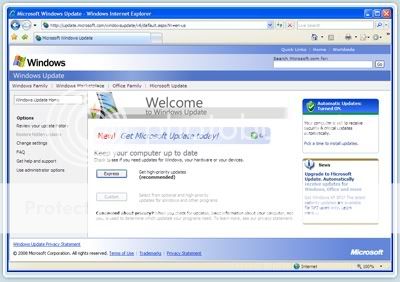
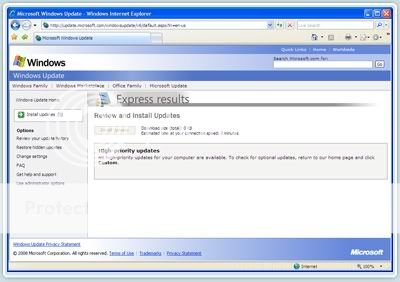
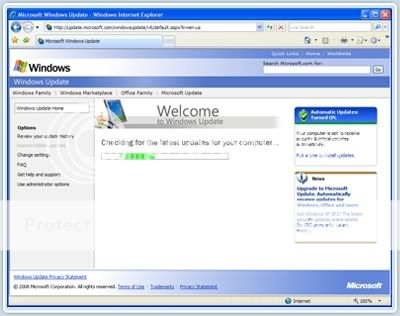
Note: If you click Custom, High-priority updates will be presented for your review. Select Optional updates from the left side of the web page by type: "Software, Optional" or "Hardware,Optional".
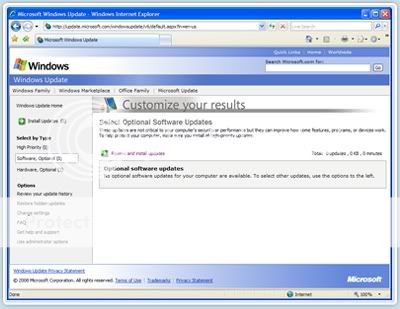
Remember to check the Windows Update website regularly for Optional updates as they are not offered through Automatic Updates.
Using Microsoft Update via Windows Update
Do you have other Microsoft products besides Windows? Turning on Microsoft Update helps you keep Windows and many other Microsoft programs, such as Microsoft Office, updated all in one place. If you've been using Windows Update with Automatic Updates turned on, Windows Update will continue to check for and install High-priority updates for your Windows XP –based PC.
Note: The first time you visit Microsoft Update, you will need to install the updating software on your PC.
To use Microsoft Update
1- Connect to the Internet and go to the Microsoft Update website or click Microsoft Update on any Microsoft.com site. (If you've already turned it on you'll skip straight to Step 7 .)
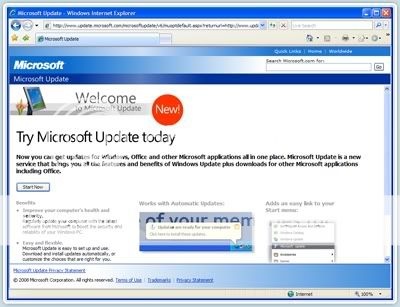
2- Click Start Now, and then click Continue.
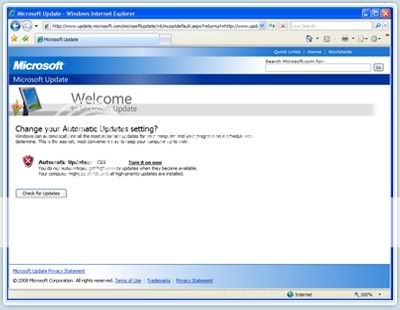
3- Automatic Updates is turned off by default. To turn on Automatic Updates, click Turn it on now.
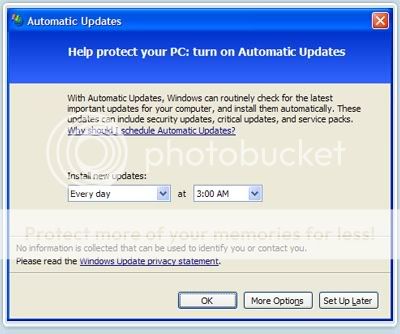
4- Select when you want the new updates installed. Click OK. Automatic Updates are now turned on.
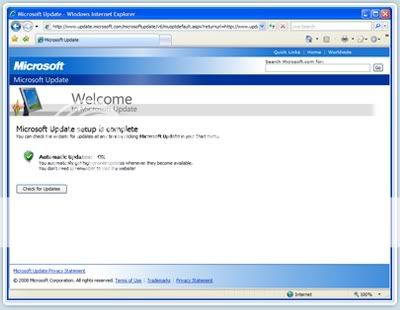
5- Click Check for Updates.
6- Now that you have set up the Microsoft Update service and turned on Automatic Updates, click Check for Updates.
7- Click either Express or Custom installation.
A. Get answers to questions you have about Microsoft Update.
B. Another opportunity to sign up for Automatic Updates.
- Express finds High-priority updates for your PC, which you install with one click.
- Custom finds both High-priority and Optional. You individually review and select the updates you want to install.
Tip: Find out how to keep earlier versions of Windows (Windows 2000, Windows ME, Windows 98, Windows 95, and Windows NT) and Microsoft Office versions up to date.
Source: Microsoft


No comments:
Post a Comment