Windows Update can be set up to automatically download and install both Important updates and Recommended updates in Windows Vista. This is the simplest way to make sure your PC stays up to date—just set it up and forget it.
Note: To help prevent unexpected changes in how your PC works, Microsoft may sometimes ask you to accept an update before it's installed, even if you have automatic settings selected.
Choose how Windows will install updates
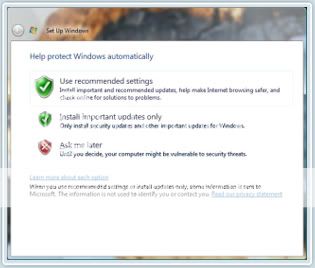
Turning on Windows Update is simple. As you set up your new PC, you'll be asked if you want to "Help protect Windows automatically." Just select one of the green shield options (see screen shot below) and Windows Update will check for, download, and install new updates for your PC.
Microsoft recommends the first option "Use recommended settings" so that you automatically
receive all Important and Recommended updates. Microsoft also recommends that you turn on
other features such as the Internet Explorer Phishing Filter to help protect your PC and personal information.
The second option "Install important updates only" will check for, download, and automatically
install only Important updates.

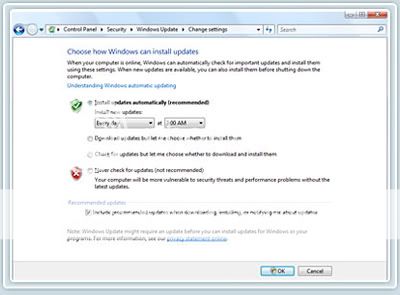
You can also change the automatic update settings anytime with the Windows Update control panel. And you can review and install Optional updates from the panel.
To do change the automatic update settings
1- Open Windows Update (click the Start button button, click All Programs, and then click Windows Update).
2- Select Change Settings and choose how you want Windows to install updates.

Switching from windows update to microsoft update
Do you have other Microsoft products besides Windows? Microsoft Update helps you update Windows and many other Microsoft programs that you've installed, such as Microsoft Office, all in one place.
To turn on Microsoft Update in Windows Vista
1- Open Windows Update (click the Start button button, click All Programs, and then click Windows Update).
2- Click the Get updates for more products button. (Note: If this button does not appear, it's likely you've already enabled Microsoft Update. This may happen when you installed other software programs like Microsoft Office 2007. In this case, the phrase "You receive updates: For Windows and other products from Microsoft Update" should appear near the bottom of the window.)
3- Follow the instructions to use Microsoft Update. Windows Update will begin to scan your PC
for available updates for Windows and other Microsoft products if you have automatic updating
turned on.
Installing optional updates and drivers
To install Optional updates, just select them from the list of updates that Windows finds for your PC. Optional updates are not installed automatically.
To install Optional updates
1- Open Windows Update (click the Start button, click All Programs, and then click Windows Update).
2- In the left pane, click Check for updates, and then wait while Windows looks for the latest updates for your PC.

3- If any updates are found, click View available updates.

4- Select the Optional updates that you want, and then click Install. If you are prompted for an administrator password or confirmation, type the password or provide confirmation.
Note: If you are offered an Optional update that you don't want to install, you can simply right click and select Hide update and it will not appear on the list the next time you use the update service. If you discover that you do want it, simply select Restore Hidden Updates.
Help and How-to
Find help and how-to information about Windows Update in Windows Vista.
Source: Microsoft
Note: To help prevent unexpected changes in how your PC works, Microsoft may sometimes ask you to accept an update before it's installed, even if you have automatic settings selected.
Choose how Windows will install updates
Turning on Windows Update is simple. As you set up your new PC, you'll be asked if you want to "Help protect Windows automatically." Just select one of the green shield options (see screen shot below) and Windows Update will check for, download, and install new updates for your PC.
Microsoft recommends the first option "Use recommended settings" so that you automatically
receive all Important and Recommended updates. Microsoft also recommends that you turn on
other features such as the Internet Explorer Phishing Filter to help protect your PC and personal information.
The second option "Install important updates only" will check for, download, and automatically
install only Important updates.
You can also change the automatic update settings anytime with the Windows Update control panel. And you can review and install Optional updates from the panel.
To do change the automatic update settings
1- Open Windows Update (click the Start
 button button, click All Programs, and then click Windows Update).
2- Select Change Settings and choose how you want Windows to install updates.
Switching from windows update to microsoft update
Do you have other Microsoft products besides Windows? Microsoft Update helps you update Windows and many other Microsoft programs that you've installed, such as Microsoft Office, all in one place.
To turn on Microsoft Update in Windows Vista
1- Open Windows Update (click the Start
button button, click All Programs, and then click Windows Update).2- Click the Get updates for more products button. (Note: If this button does not appear, it's likely you've already enabled Microsoft Update. This may happen when you installed other software programs like Microsoft Office 2007. In this case, the phrase "You receive updates: For Windows and other products from Microsoft Update" should appear near the bottom of the window.)
3- Follow the instructions to use Microsoft Update. Windows Update will begin to scan your PC
for available updates for Windows and other Microsoft products if you have automatic updating
turned on.
Installing optional updates and drivers
To install Optional updates, just select them from the list of updates that Windows finds for your PC. Optional updates are not installed automatically.
To install Optional updates
1- Open Windows Update (click the Start
button, click All Programs, and then click Windows Update).2- In the left pane, click Check for updates, and then wait while Windows looks for the latest updates for your PC.
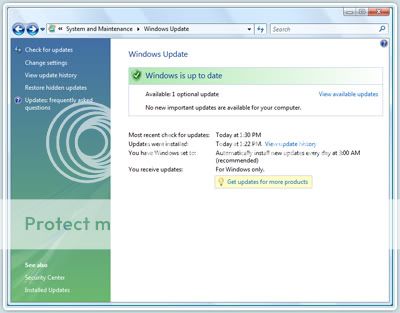
3- If any updates are found, click View available updates.
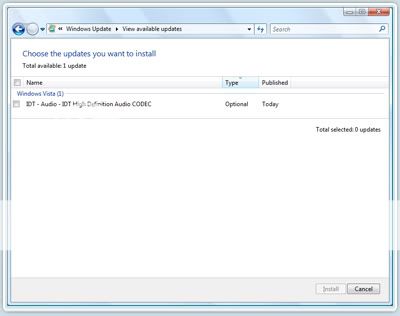
4- Select the Optional updates that you want, and then click Install. If you are prompted for an administrator password or confirmation, type the password or provide confirmation.
Note: If you are offered an Optional update that you don't want to install, you can simply right click and select Hide update and it will not appear on the list the next time you use the update service. If you discover that you do want it, simply select Restore Hidden Updates.
Help and How-to
Find help and how-to information about Windows Update in Windows Vista.
Source: Microsoft


No comments:
Post a Comment