Use antispyware software
Antispyware software helps protect your computer from spyware and other unwanted software. Windows Vista comes with antispyware software built-in. Your antivirus software package also might include antispyware software or you may have already downloaded Windows Defender, free antispyware software from Microsoft.
To find out if you already have antispyware software or to check your settings, click the link that corresponds to the operating system you use.
Antispyware: Windows Vista
Microsoft's antispyware software in Windows Vista, Windows Defender, helps prevent computer
slow downs, privacy and data loss, and unwanted pop-up advertisements caused by spyware and other potentially unwanted software.
Windows Defender is part of Windows Vista. It features Real-Time Protection, a monitoring system that recommends actions against spyware when it's detected; and a new streamlined interface that minimizes interruptions and helps you stay productive.
Antispyware: Windows XP Service Pack 2 (SP2)
To find out if you already have antispyware software, click Start, point to All Programs, and then look for Windows Defender or another popular security program like Symantec or McAfee that might have antispyware protection built-in.
You might also already have a stand-alone program like Lavasoft Ad-Aware or Spybot Search & Destroy.
Windows Defender, which is free from Microsoft, can help protect your computer from spyware and other potentially unwanted software. To download the program, visit the Microsoft Download Center. To learn more about it, see the Windows Defender Web site.
Antipsyware: Windows XP
To find out if you already have antispyware software, click Start, point to All programs, and then look for Windows Defender or another popular security program like Symantec or McAfee that might have antispyware protection built-in.
You might also already have a stand-alone program like Lavasoft Ad-Aware or Spybot Search & Destroy.
Windows Defender, which is free from Microsoft, can help protect your computer from spyware
and other potentially unwanted software. To download the program, visit the Microsoft Download Center. To learn more about it, see the Windows Defender Web site.
Antispyware: Windows 2000
To find antispyware software for Windows 2000, visit Windows Marketplace.
Note: The Windows Vista operating system has spyware protection built-in and turned on by default. Consider upgrading to Windows Vista for increased security.
Related links
- What is spyware ?
- How to prevent spyware ?
- Windows defender help ...
Source: Microsoft
Thursday, September 17, 2009

Wednesday, September 16, 2009
How to remove spyware
Many kinds of unwanted software, including spyware, are designed to be difficult to remove. If you try to uninstall this software like any other program, you might find that the program reappears as soon as you restart your computer.
Where to get antispyware software
If you're having trouble uninstalling unwanted software, you might need to download a tool to do the job for you. In addition to Microsoft, which offers Windows Defender, several companies offer free and low-cost software that will check your computer for spyware and other unwanted software and help you remove it.
Some Internet Service Providers (ISPs) include antispyware software in their service packages.
Check with your ISP to see if they can recommend or provide a tool, or see the links in step 1 below.Keep in mind that removing unwanted software with these tools might mean you will no
longer be able to use a free program that came with the spyware.
To remove spyware
1- Use Windows Defender. Windows Defender comes with Windows Vista. If you use Windows XP SP2, you can download Windows Defender for no charge.
2- Run the tool to scan your computer for spyware and other unwanted software.
3- Review the files discovered by the tool for spyware and other unwanted software.
4- Select suspicious files for removal by following the tool's instructions.
What about malware ?
Although spyware programs are different from viruses, worms, and other malware, some can behave like viruses and pose similar and other risks. To scan your computer and help protect against malware, use the Windows Live safety scanner or the Malicious Software Removal Tool.
Related links
- What is spyware ?
- Symptoms of spyware
- Help prevent spyware
- Download windows defender
- Microsoft security essentials
Source: Microsoft
Where to get antispyware software
If you're having trouble uninstalling unwanted software, you might need to download a tool to do the job for you. In addition to Microsoft, which offers Windows Defender, several companies offer free and low-cost software that will check your computer for spyware and other unwanted software and help you remove it.
Some Internet Service Providers (ISPs) include antispyware software in their service packages.
Check with your ISP to see if they can recommend or provide a tool, or see the links in step 1 below.Keep in mind that removing unwanted software with these tools might mean you will no
longer be able to use a free program that came with the spyware.
To remove spyware
1- Use Windows Defender. Windows Defender comes with Windows Vista. If you use Windows XP SP2, you can download Windows Defender for no charge.
2- Run the tool to scan your computer for spyware and other unwanted software.
3- Review the files discovered by the tool for spyware and other unwanted software.
4- Select suspicious files for removal by following the tool's instructions.
What about malware ?
Although spyware programs are different from viruses, worms, and other malware, some can behave like viruses and pose similar and other risks. To scan your computer and help protect against malware, use the Windows Live safety scanner or the Malicious Software Removal Tool.
Related links
- What is spyware ?
- Symptoms of spyware
- Help prevent spyware
- Download windows defender
- Microsoft security essentials
Source: Microsoft
How to prevent spyware
Spyware and other unwanted software can
1- Invade your privacy
2- Bombard you with pop-up windows
3- Slow down your computer
4- Make your computer crash
Here are several ways you can help protect your computer against spyware and other unwanted
software.
Step 1: Use a firewall
While most spyware and other unwanted software come bundled with other programs or originate from unscrupulous Web sites, a small amount of spyware can actually be placed on your computer remotely by hackers. Installing a firewall or using the firewall that's built into Windows Vista and Windows XP provides a helpful defense against these hackers..
To learn more about firewalls, read What is a firewall and get answers to your Frequently Asked Questions about firewalls.
Step 2: Update your software
If you use Windows Vista or Windows XP, make sure all your software is updated. Visit Microsoft Update to confirm that you have automatic updating turned on and that you've downloaded and installed all the latest critical and security updates.
Step 3: Adjust Internet Explorer Security Setting
You can adjust your Internet Explorer Web browser's security settings to determine how much-or how little-information you want to accept from a Web site.
Microsoft recommends that you set the security settings for the Internet zone to Medium or higher. (If you use Windows Vista or Windows XP Service Pack 2 (SP2) and you use Internet Explorer to browse the Web, your browser security settings for the Internet zone are set to Medium by default.)
To view your current Internet Explorer security settings:
1- In Internet Explorer, click Tools and then click Internet Options.
2- Select the Security tab.
For more information about security in Internet Explorer, see Change Internet Explorer Security Settings.
Internet Explorer also includes a number of features to help protect against spyware and many
other kinds of deceptive or unwanted software.
If you use Windows Vista or Windows XP Service Pack 2 (SP2) and you use Internet Explorer to
browse the Web, your browser security settings for the Internet zone are already set to Medium
by default. Internet Explorer also includes a number of features to help protect against spyware and many other kinds of deceptive or unwanted software.
Step 4: Download and install antispyware protection
Windows Defender protects your computer from spyware and other unwanted software. Windows Defender comes with Windows Vista and you can download it for no charge for Windows XP SP2. For more information, see spyware protection in version of windows.
Step 5: Surf and download more safely
The best defense against spyware and other unwanted software is not to download it in the first place. Here are a few helpful tips that can protect you from downloading software you don't want:
1- Invade your privacy
2- Bombard you with pop-up windows
3- Slow down your computer
4- Make your computer crash
Here are several ways you can help protect your computer against spyware and other unwanted
software.
Step 1: Use a firewall
While most spyware and other unwanted software come bundled with other programs or originate from unscrupulous Web sites, a small amount of spyware can actually be placed on your computer remotely by hackers. Installing a firewall or using the firewall that's built into Windows Vista and Windows XP provides a helpful defense against these hackers..
To learn more about firewalls, read What is a firewall and get answers to your Frequently Asked Questions about firewalls.
Step 2: Update your software
If you use Windows Vista or Windows XP, make sure all your software is updated. Visit Microsoft Update to confirm that you have automatic updating turned on and that you've downloaded and installed all the latest critical and security updates.
Step 3: Adjust Internet Explorer Security Setting
You can adjust your Internet Explorer Web browser's security settings to determine how much-or how little-information you want to accept from a Web site.
Microsoft recommends that you set the security settings for the Internet zone to Medium or higher. (If you use Windows Vista or Windows XP Service Pack 2 (SP2) and you use Internet Explorer to browse the Web, your browser security settings for the Internet zone are set to Medium by default.)
To view your current Internet Explorer security settings:
1- In Internet Explorer, click Tools and then click Internet Options.
2- Select the Security tab.
For more information about security in Internet Explorer, see Change Internet Explorer Security Settings.
Internet Explorer also includes a number of features to help protect against spyware and many
other kinds of deceptive or unwanted software.
If you use Windows Vista or Windows XP Service Pack 2 (SP2) and you use Internet Explorer to
browse the Web, your browser security settings for the Internet zone are already set to Medium
by default. Internet Explorer also includes a number of features to help protect against spyware and many other kinds of deceptive or unwanted software.
Step 4: Download and install antispyware protection
Windows Defender protects your computer from spyware and other unwanted software. Windows Defender comes with Windows Vista and you can download it for no charge for Windows XP SP2. For more information, see spyware protection in version of windows.
Step 5: Surf and download more safely
The best defense against spyware and other unwanted software is not to download it in the first place. Here are a few helpful tips that can protect you from downloading software you don't want:
- Only download programs from Web sites you trust. If you're not sure whether to trust a program you are considering downloading, enter the name of the program into your favorite search engine to see if anyone else has reported that it contains spyware.
- Read all security warnings, license agreements, and privacy statements associated with any software you download.
- Never click "Agree" or "OK" to close a window. Instead, click the red "x" in the corner of the window or press Alt + F4 on your keyboard to close a window.
- Be wary of popular "free" music and movie file-sharing programs, and be sure you understand all of the software packaged with those programs.
Related links
- What is spyware ?
- Symptoms of spyware
- Remove spyware
- Download windows defender
- Microsoft security essentials
Source: Microsoft
Spyware symptoms
If your computer starts to behave strangely, you might have spyware or other unwanted software installed on your computer.
If you think your computer is infected with spyware, find out how to get rid of spyware and how you can prevent spyware from getting on your computer.
Related links
- What is spyware
- Help prevent spyware
- Remove spyware
- Download windows defender
Source: Microsoft
- I see pop-up advertisements all the time. Some unwanted software will bombard you with pop-up ads that aren't related to a particular Web site you're visiting.These ads are often for adult or other Web sites you may find objectionable. If you see pop-up ads as soon as you turn on your computer or when you're not even browsing the Web, you might have spyware or other unwanted software on your computer.
- My settings have changed and I can't change them back to the way they were. Some unwanted software can change your home page or search page settings. Even if you adjust these settings, you might find that they revert back every time you restart your computer.
- My Web browser contains additional components that I don't remember downloading. Spyware and other unwanted software can add toolbars to your Web browser that you don't want or need. Even if you remove these toolbars, they might return each time you restart your computer.
- My computer seems sluggish. Spyware and other unwanted software are not designed to be efficient. The resources these programs use to track your activities and deliver advertisementscan slow down your computer and errors in the software can make your computer crash. If younotice a sudden increase in the number of times a certain program crashes, or if your computer is slower than normal at performing routine tasks, you may have spyware or other unwanted software on your machine.
If you think your computer is infected with spyware, find out how to get rid of spyware and how you can prevent spyware from getting on your computer.
Related links
- What is spyware
- Help prevent spyware
- Remove spyware
- Download windows defender
Source: Microsoft
Learn About Windows Update
You can use Windows Update to automatically update your PC, install optional drivers and software, or opt into Microsoft Update with just a few clicks. Want to learn more? Just pick which operating system you have and we'll help walk you through the steps.
Source: Microsoft
Using Windows Update in Windows Vista
Windows Update can be set up to automatically download and install both Important updates and Recommended updates in Windows Vista. This is the simplest way to make sure your PC stays up to date—just set it up and forget it.
Note: To help prevent unexpected changes in how your PC works, Microsoft may sometimes ask you to accept an update before it's installed, even if you have automatic settings selected.
Choose how Windows will install updates
Turning on Windows Update is simple. As you set up your new PC, you'll be asked if you want to "Help protect Windows automatically." Just select one of the green shield options (see screen shot below) and Windows Update will check for, download, and install new updates for your PC.
Microsoft recommends the first option "Use recommended settings" so that you automatically
receive all Important and Recommended updates. Microsoft also recommends that you turn on
other features such as the Internet Explorer Phishing Filter to help protect your PC and personal information.
The second option "Install important updates only" will check for, download, and automatically
install only Important updates.

You can also change the automatic update settings anytime with the Windows Update control panel. And you can review and install Optional updates from the panel.
To do change the automatic update settings
1- Open Windows Update (click the Start button button, click All Programs, and then click Windows Update).
2- Select Change Settings and choose how you want Windows to install updates.

Switching from windows update to microsoft update
Do you have other Microsoft products besides Windows? Microsoft Update helps you update Windows and many other Microsoft programs that you've installed, such as Microsoft Office, all in one place.
To turn on Microsoft Update in Windows Vista
1- Open Windows Update (click the Start button button, click All Programs, and then click Windows Update).
2- Click the Get updates for more products button. (Note: If this button does not appear, it's likely you've already enabled Microsoft Update. This may happen when you installed other software programs like Microsoft Office 2007. In this case, the phrase "You receive updates: For Windows and other products from Microsoft Update" should appear near the bottom of the window.)
3- Follow the instructions to use Microsoft Update. Windows Update will begin to scan your PC
for available updates for Windows and other Microsoft products if you have automatic updating
turned on.
Installing optional updates and drivers
To install Optional updates, just select them from the list of updates that Windows finds for your PC. Optional updates are not installed automatically.
To install Optional updates
1- Open Windows Update (click the Start button, click All Programs, and then click Windows Update).
2- In the left pane, click Check for updates, and then wait while Windows looks for the latest updates for your PC.

3- If any updates are found, click View available updates.

4- Select the Optional updates that you want, and then click Install. If you are prompted for an administrator password or confirmation, type the password or provide confirmation.
Note: If you are offered an Optional update that you don't want to install, you can simply right click and select Hide update and it will not appear on the list the next time you use the update service. If you discover that you do want it, simply select Restore Hidden Updates.
Help and How-to
Find help and how-to information about Windows Update in Windows Vista.
Source: Microsoft
Note: To help prevent unexpected changes in how your PC works, Microsoft may sometimes ask you to accept an update before it's installed, even if you have automatic settings selected.
Choose how Windows will install updates
Turning on Windows Update is simple. As you set up your new PC, you'll be asked if you want to "Help protect Windows automatically." Just select one of the green shield options (see screen shot below) and Windows Update will check for, download, and install new updates for your PC.
Microsoft recommends the first option "Use recommended settings" so that you automatically
receive all Important and Recommended updates. Microsoft also recommends that you turn on
other features such as the Internet Explorer Phishing Filter to help protect your PC and personal information.
The second option "Install important updates only" will check for, download, and automatically
install only Important updates.
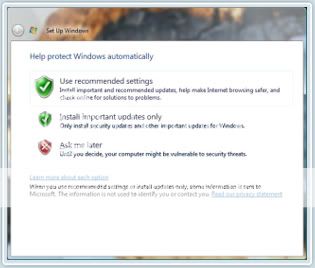
You can also change the automatic update settings anytime with the Windows Update control panel. And you can review and install Optional updates from the panel.
To do change the automatic update settings
1- Open Windows Update (click the Start
 button button, click All Programs, and then click Windows Update).
2- Select Change Settings and choose how you want Windows to install updates.
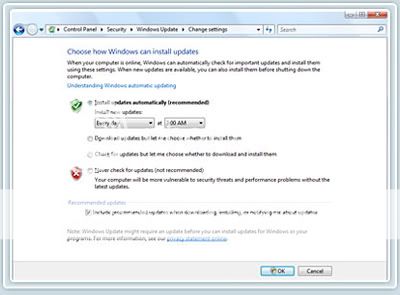
Switching from windows update to microsoft update
Do you have other Microsoft products besides Windows? Microsoft Update helps you update Windows and many other Microsoft programs that you've installed, such as Microsoft Office, all in one place.
To turn on Microsoft Update in Windows Vista
1- Open Windows Update (click the Start
button button, click All Programs, and then click Windows Update).2- Click the Get updates for more products button. (Note: If this button does not appear, it's likely you've already enabled Microsoft Update. This may happen when you installed other software programs like Microsoft Office 2007. In this case, the phrase "You receive updates: For Windows and other products from Microsoft Update" should appear near the bottom of the window.)
3- Follow the instructions to use Microsoft Update. Windows Update will begin to scan your PC
for available updates for Windows and other Microsoft products if you have automatic updating
turned on.
Installing optional updates and drivers
To install Optional updates, just select them from the list of updates that Windows finds for your PC. Optional updates are not installed automatically.
To install Optional updates
1- Open Windows Update (click the Start
button, click All Programs, and then click Windows Update).2- In the left pane, click Check for updates, and then wait while Windows looks for the latest updates for your PC.
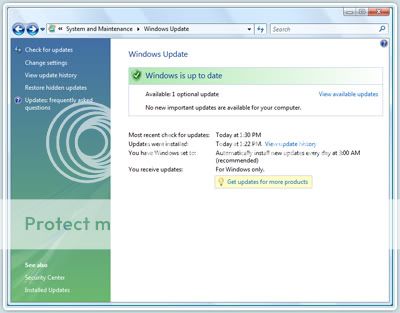
3- If any updates are found, click View available updates.
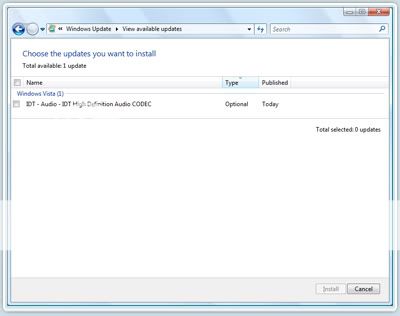
4- Select the Optional updates that you want, and then click Install. If you are prompted for an administrator password or confirmation, type the password or provide confirmation.
Note: If you are offered an Optional update that you don't want to install, you can simply right click and select Hide update and it will not appear on the list the next time you use the update service. If you discover that you do want it, simply select Restore Hidden Updates.
Help and How-to
Find help and how-to information about Windows Update in Windows Vista.
Source: Microsoft
Wednesday, September 9, 2009
Windows Update: Using Windows Update for Windows XP
The Windows Update service is a simple and reliable way to make sure your PC stays updated. Windows Update provides your PC with security and reliability updates, drivers, service packs, and feature updates. And with Windows Update, you can turn on Automatic Updates so it continuously checks for, downloads, and installs most updates automatically for you.
Note: To help prevent unexpected changes in how your PC works, Microsoft may sometimes ask you to accept an update before installing it, even if you have automatic settings selected.
Use Windows Update with Automatic Updates
The Windows Update service provides a single location for all the updates for your Windows XP–based PC. And by turning on the Automatic Updates feature, you can make sure your PC has High-priority updates including security and reliability updates, drivers, service packs, and feature updates. Automatic Updates routinely checks for the latest High-priority updates for your PC and then downloads and installs them for you automatically.
Note: The Automatic Updates feature will only check for High-priority updates. Automatic Updates will not download and install Optional updates. You will need to return to the Windows Update site regularly to select and install Optional updates.
If you don't have Automatic Updates turned on, Microsoft recommends you turn it on when you visit the Windows Update site.
To turn on Automatic Updates in Windows XP (SP2)
1- Click Start, and then click Control Panel.
2- Click Automatic Updates.
3- Choose Automatic (recommended).
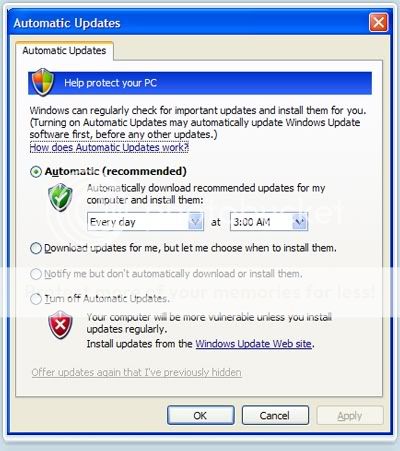
Note: You can also turn on Automatic Updates from the Windows Update website.
To update your PC now
1- Go to the Windows Update website.
2- Then, do one of the following:
- Click Express to check for High-priority updates. Windows Update will check for High-priority updates for your PC and display them for your review. Select the updates you want, and then click Install Updates.
- Click Custom to check for Optional updates. Windows Update will check for the latest updates for your PC.
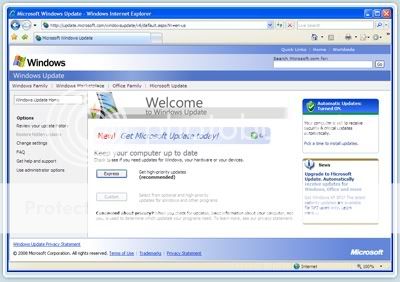
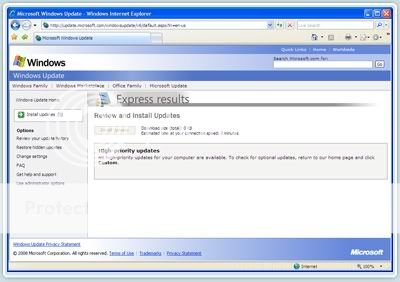
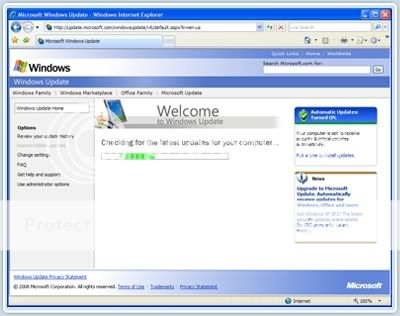
Note: If you click Custom, High-priority updates will be presented for your review. Select Optional updates from the left side of the web page by type: "Software, Optional" or "Hardware,Optional".
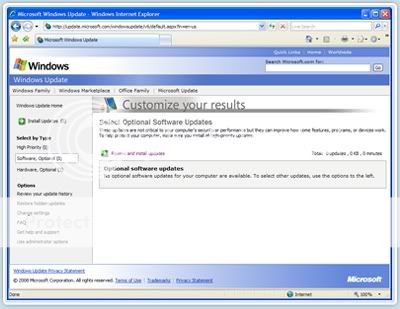
Remember to check the Windows Update website regularly for Optional updates as they are not offered through Automatic Updates.
Using Microsoft Update via Windows Update
Do you have other Microsoft products besides Windows? Turning on Microsoft Update helps you keep Windows and many other Microsoft programs, such as Microsoft Office, updated all in one place. If you've been using Windows Update with Automatic Updates turned on, Windows Update will continue to check for and install High-priority updates for your Windows XP –based PC.
Note: The first time you visit Microsoft Update, you will need to install the updating software on your PC.
To use Microsoft Update
1- Connect to the Internet and go to the Microsoft Update website or click Microsoft Update on any Microsoft.com site. (If you've already turned it on you'll skip straight to Step 7 .)
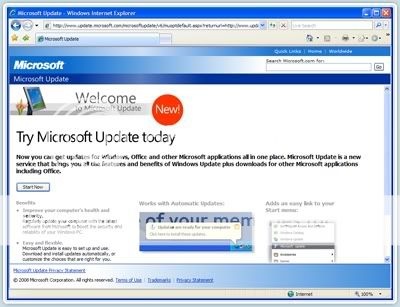
2- Click Start Now, and then click Continue.
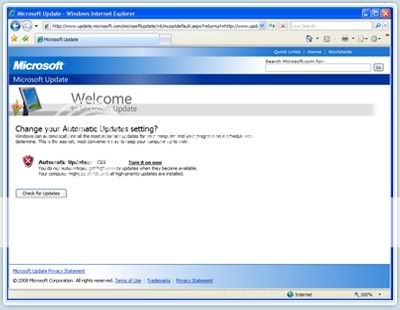
3- Automatic Updates is turned off by default. To turn on Automatic Updates, click Turn it on now.
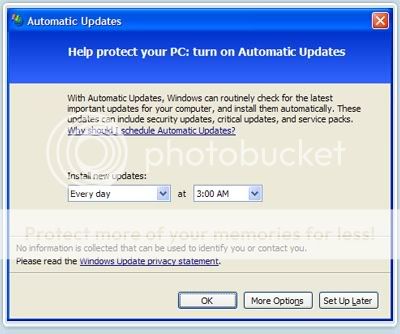
4- Select when you want the new updates installed. Click OK. Automatic Updates are now turned on.
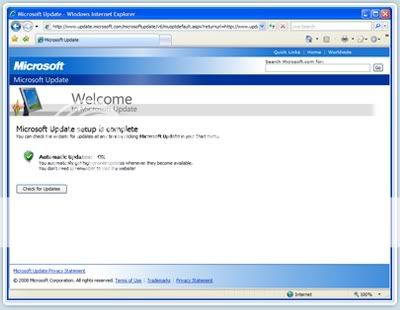
5- Click Check for Updates.
6- Now that you have set up the Microsoft Update service and turned on Automatic Updates, click Check for Updates.
7- Click either Express or Custom installation.
A. Get answers to questions you have about Microsoft Update.
B. Another opportunity to sign up for Automatic Updates.
- Express finds High-priority updates for your PC, which you install with one click.
- Custom finds both High-priority and Optional. You individually review and select the updates you want to install.
Tip: Find out how to keep earlier versions of Windows (Windows 2000, Windows ME, Windows 98, Windows 95, and Windows NT) and Microsoft Office versions up to date.
Source: Microsoft
Tuesday, September 8, 2009
How to remove a computer virus ?
Even for an expert, removing a virus from a computer can be a daunting task without the help of tools designed for the job.
Some viruses and other unwanted software (including spyware) are even designed to reinstall themselves after they have been detected and removed.
Fortunately, by updating your computer and using free, trial-period, or low-cost antivirus tools, you can help permanently remove (and prevent) unwanted software.
Steps to help remove a virus:
Visit Microsoft Update and install the latest updates.
If you currently use antivirus software, visit the manufacturer's Web site, update your software, and then perform a thorough scan of your computer. If you don't use antivirus software, subscribe to a service and scan your computer immediately.
Download, install, and run the Malicious Software Removal Tool. Note that this tool does not prevent viruses from infecting your system; it helps to remove existing viruses.
Why didn't my antivirus software work ?
It's crucial to keep your antivirus software current with the latest updates (usually called definition files) that help the tool identify and remove the latest threats.
In addition, not all antivirus tools are the same; if you find that the one you use isn't working to your satisfaction, you should do some research and try an alternative.
Note: What you might think is a virus could actually be spyware. Download and install Windows Defender or other antispyware software to see if that fixes the problem. Windows Defender comes with Windows Vista. If you use Windows XP SP2, you can download Windows Defender for no charge.
How do I install updates and antivirus software if I can't use my computer ?
It might be difficult to download tools or update your computer if your computer has a virus. In this case, use a friend's or other computer to download the tools to a disk, or get support from Microsoft.
Source: Microsoft
Some viruses and other unwanted software (including spyware) are even designed to reinstall themselves after they have been detected and removed.
Fortunately, by updating your computer and using free, trial-period, or low-cost antivirus tools, you can help permanently remove (and prevent) unwanted software.
Steps to help remove a virus:
Visit Microsoft Update and install the latest updates.
If you currently use antivirus software, visit the manufacturer's Web site, update your software, and then perform a thorough scan of your computer. If you don't use antivirus software, subscribe to a service and scan your computer immediately.
Download, install, and run the Malicious Software Removal Tool. Note that this tool does not prevent viruses from infecting your system; it helps to remove existing viruses.
Why didn't my antivirus software work ?
It's crucial to keep your antivirus software current with the latest updates (usually called definition files) that help the tool identify and remove the latest threats.
In addition, not all antivirus tools are the same; if you find that the one you use isn't working to your satisfaction, you should do some research and try an alternative.
Note: What you might think is a virus could actually be spyware. Download and install Windows Defender or other antispyware software to see if that fixes the problem. Windows Defender comes with Windows Vista. If you use Windows XP SP2, you can download Windows Defender for no charge.
How do I install updates and antivirus software if I can't use my computer ?
It might be difficult to download tools or update your computer if your computer has a virus. In this case, use a friend's or other computer to download the tools to a disk, or get support from Microsoft.
Source: Microsoft
Help prevent computer viruses
Nothing can guarantee the security of your computer 100 percent.
You can continue to improve your computer's security and decrease the possibility of infection by using a firewall, keeping your system up-to-date, maintaining a current antivirus software subscription, and following a few best practices.
Tip: Because no security method is guaranteed, it's important to back up critical files on a regular basis before you encounter a virus or other problems.
Steps to help avoid viruses:
Use an Internet firewall.
Note: Windows Vista and Windows XP with SP2 has a firewall already built-in and turned on by
default.
Visit Microsoft Update to verify your settings and check for updates.
Note: If you've installed the most recent version of Microsoft Office, Microsoft Update will
also update your Office programs.
Subscribe to antivirus software and keep it current.
Never open an e-mail attachment from someone you don't know.
Avoid opening an e-mail attachment from someone you know, unless you know exactly what the
attachment is. The sender may be unaware that it contains a virus.
Use a standard user account unless you need to use an Administrator Account. For more information, see Why use a standard user account instead of an administrator account.
What about spyware ?
Although spyware programs are different from viruses, some can behave like viruses and pose
similar and other risks. To help protect against spyware, use antispyware software such as Windows Defender. Windows Defender comes with Windows Vista. If you use Windows XP SP2, you can download Windows Defender for no charge.
Source: Microsoft
You can continue to improve your computer's security and decrease the possibility of infection by using a firewall, keeping your system up-to-date, maintaining a current antivirus software subscription, and following a few best practices.
Tip: Because no security method is guaranteed, it's important to back up critical files on a regular basis before you encounter a virus or other problems.
Steps to help avoid viruses:
Use an Internet firewall.
Note: Windows Vista and Windows XP with SP2 has a firewall already built-in and turned on by
default.
Visit Microsoft Update to verify your settings and check for updates.
Note: If you've installed the most recent version of Microsoft Office, Microsoft Update will
also update your Office programs.
Subscribe to antivirus software and keep it current.
Never open an e-mail attachment from someone you don't know.
Avoid opening an e-mail attachment from someone you know, unless you know exactly what the
attachment is. The sender may be unaware that it contains a virus.
Use a standard user account unless you need to use an Administrator Account. For more information, see Why use a standard user account instead of an administrator account.
What about spyware ?
Although spyware programs are different from viruses, some can behave like viruses and pose
similar and other risks. To help protect against spyware, use antispyware software such as Windows Defender. Windows Defender comes with Windows Vista. If you use Windows XP SP2, you can download Windows Defender for no charge.
Source: Microsoft
Computer virus symptoms
After you open and run an infected program or attachment on your computer, you might not realize that you've introduced a virus until you notice something isn't quite right.
Here are a few primary indicators that your computer might be infected:
Here are a few primary indicators that your computer might be infected:
- Your computer runs more slowly than normal
- Your computer stops responding or locks up often
- Your computer crashes and restarts every few minutes
- Your computer restarts on its own and then fails to run normally
- Applications on your computer don't work correctly
- Disks or disk drives are inaccessible
- You see unusual error messages
- You see distorted menus and dialog boxes
These are common signs of infection—but they might also indicate hardware or software problems that have nothing to do with a virus. Unless you run the Microsoft Malicious Software Removal Tool and install industry-standard, up-to-date antivirus software on your computer, there is no way to be certain if your computer is infected with a virus or not. If you don't have current antivirus software installed or if you're interested in installing a different brand, visit our Windows Marketplace for software from other companies.
Tip: Beware of messages warning you that you sent e-mail that contained a virus. This can indicate that the virus has listed your e-mail address as the sender of tainted e-mail. This does not necessarily mean you have a virus. Some viruses have the ability to forge e-mail addresses.
Related links
- Microsoft security Essentials
- What is a computer virus?
- How to remove computer virus?
- Help prevent computer viruses
Source: Microsoft
Monday, September 7, 2009
4 steps to protect your computer


2- Keep your operating system up-to-date. Learn about operating system updates.

3- Keep your antivirus software up to date. Learn about antivirus software.

4- Keep your antispyware technology up to date. Learn about antispyware technology.
About firewalls
A firewall helps protect your computer from hackers who might try to delete information, crash your computer, or even steal your passwords or credit card numbers.
About operating system updates
High priority updates are critical to the security and reliability of your computer. They offer the latest protection against malicious online activities. Microsoft provides new updates, as necessary, on the second Tuesday of the month.
About antivirus software
Viruses and spyware are two kinds of usually malicious software that you need to protect your computer against. You need antivirus technology to help prevent viruses, and you need to keep it regularly updated.
About antispyware technology
Viruses and spyware are two kinds of usually malicious software that you need to protect your computer against. You need antispyware technology to help prevent spyware, and you need to keep it regularly updated.
Related links
1- what is a firewall ?
2- what is a computer virus ?
3- what is a computer worm ?
4- what is spyware ?
Source: Microsoft
Subscribe to:
Comments (Atom)
