Use antivirus software
Antivirus software helps protect your computer from viruses or other malicious software.
Microsoft Windows does not come with antivirus software. You must purchase and install it
separately.
To find out if you already have antivirus software or to purchase antivirus software from
Microsoft, click the link that corresponds to the operating system you use.
* Windows Vista
* Windows XP Service Pack 2 (SP2)
* Windows XP
* Windows 2000
* Windows Vista
Your computer might already have antivirus software. If you don't have antivirus software
installed, Windows Security Center should alert you in the notification area at the bottom of
your screen.
You can also find out if you already have antivirus software installed by clicking the Start
button and pointing to All Programs. Then look for an antivirus program.
Many major computer manufacturers include at least a trial version of a popular antivirus
software package, such as McAfee or Symantec. But just because the software is installed,
doesn't mean it's turned on or being updated regularly.
If your antivirus software is not up-to-date, Windows Security Center should alert you in the
notification area at the bottom of your screen. To help ensure that your software is
up-to-date, open your antivirus program from the Start menu or the taskbar notification area
and look for update status. If you still aren't sure if your antivirus software is up-to-date,
contact your antivirus software provider.
If you don't see antivirus software or if Windows Security Center tells you that your
antivirus software is not up-to-date, you should download or purchase new antivirus software
or update yours.
* Windows XP Service Pack 2 (SP2)
Windows XP does not come with antivirus software. If you want to scan your computer for
viruses, malware, or other unwanted software you have two free options from Microsoft:
* Windows Live safety scanner. The safety scanner checks for and removes viruses, eliminates
junk on your hard drive, and improves your PC's performance.
* Malicious Software Removal Tool. Checks computers for infections by specific, prevalent
malicious software and helps remove any infection found.
For links to other antivirus programs that work with Microsoft, see Microsoft Help and
Support List of Antivirus Vendors.
Windows 2000
Windows 2000 does not come with antivirus software. To try antivirus software from another
company, see Windows Marketplace.
Friday, October 9, 2009

Friday, October 2, 2009
Thursday, October 1, 2009
Bluetooth
Avoid wireless attacks through your Bluetooth mobile phone
Bluetooth® wireless technology is included with many mobile phones and personal digital assistants (PDAs).
Here are some examples of the use of Bluetooth:
Any time you transmit information online, you can be vulnerable to online attack; and as the popularity of Bluetooth increases, so does its interest to cybercriminals.
How criminals attack through Bluetooth technology
When it's set to "discoverable" mode, your Bluetooth mobile phone or PDA sends a signal indicating that it's available to "pair" with another Bluetooth gadget and transmit data back and forth.
However, an attacker who detects this signal could also attempt to pair with your device and hack in to steal your personal identification number (PIN).
ou could remain unaware, while the attacker, with your PIN in hand, could be:
Criminals have also been known to drive around with Bluetooth detectors, looking for mobile phones and PDAs to infiltrate; and to outfit laptop computers with powerful antennas in order to pick up Bluetooth signals from as far as a half-mile away.
The latest forms of high-tech attack even include forcing Bluetooth devices to pair with the attacker's device when they are not in the discoverable mode. (It's also very labor-intensive, so targets tend to be individuals known to have a very large bank account or hold expensive secrets.)
Tips to improve your Bluetooth security
Source: Microsoft
Bluetooth® wireless technology is included with many mobile phones and personal digital assistants (PDAs).
Here are some examples of the use of Bluetooth:
- Hands-free headsets for mobile phones
- wireless keyboards
- wireless mice
- wireless printers
- wireless game controllers
Any time you transmit information online, you can be vulnerable to online attack; and as the popularity of Bluetooth increases, so does its interest to cybercriminals.
How criminals attack through Bluetooth technology
When it's set to "discoverable" mode, your Bluetooth mobile phone or PDA sends a signal indicating that it's available to "pair" with another Bluetooth gadget and transmit data back and forth.
However, an attacker who detects this signal could also attempt to pair with your device and hack in to steal your personal identification number (PIN).
ou could remain unaware, while the attacker, with your PIN in hand, could be:
- Stealing information stored on your device, including contact lists, e-mail, and text messages.
- Sending unsolicited text messages or images to other Bluetooth-enabled devices.
- Accessing your mobile phone commands, which allows the attacker to use your phone to make phone calls, sent text messages, read and write phonebook contacts, eavesdrop on conversations, and connect to the Internet.
- Installing a virus on your device that could wreak the same kind of havoc that a virus could on your computer—for example, slowing or disabling your service, or destroying or stealing information.
Criminals have also been known to drive around with Bluetooth detectors, looking for mobile phones and PDAs to infiltrate; and to outfit laptop computers with powerful antennas in order to pick up Bluetooth signals from as far as a half-mile away.
The latest forms of high-tech attack even include forcing Bluetooth devices to pair with the attacker's device when they are not in the discoverable mode. (It's also very labor-intensive, so targets tend to be individuals known to have a very large bank account or hold expensive secrets.)
Tips to improve your Bluetooth security
- Keep your Bluetooth setting to "non-discoverable" (transmission-disabled) and only switch it to "discoverable" when you're using it.
Just leaving your mobile phone or PDA in the discoverable mode keeps it dangerously open for Bluetooth transmission—a Bluetooth user within up to a 30-foot range can receive your signal and potentially use it to access your device as you walk around town, drive, or even walk through your office. - Use a strong PIN code. Codes of five digits or longer are harder to crack.
- Avoid storing sensitive data such as your social security number, credit card numbers, and passwords on any wireless device.
- Stay up-to-date on Bluetooth developments and security issues, and regularly check with the manufacturer of your device for news on software updates or any specific security vulnerabilities.
Source: Microsoft
Help prevent IM viruses
Help avoid instant message viruses
Using an instant messaging (IM) program—such as Windows Live Messenger (formerly MSN Messenger), Windows Messenger, AOL Instant Messenger, Yahoo Messenger, or others—you and a friend can type messages to each other and see the messages almost immediately.
Because IM is so popular, virus writers can use it to spread malicious programs.
Understanding instant message viruses
Like e-mail viruses, instant message viruses are malicious programs that are designed to travel through IM.
These viruses are spread, in most cases, when a person clicks a link or opens an infected file that was sent in an instant message that appeared to come from a friend.
When you open one of these files, your computer can become infected with a virus. Because of the virus, your computer may slow down or stop responding, or you may not notice any change at all.
However, the virus might have installed a covert program on your computer that could damage software, hardware, or important files, and that may include spyware, which can track information entered on the computer.
A computer infected by a virus may continue to spread the infection by sending copies of the virus to everyone on your IM contact list, that is, the collection of IM names that you can store in your IM program.
5 steps to help avoid instant message viruses
As with most threats on the Internet, you can help keep yourself safe by taking basic precautions. If you know how to avoid e-mail viruses, you'll already be familiar with many of these steps.
1- Be careful with links and files in IM. Never click a link or open, accept, or download a file in IM from someone you don't know. If the link or file is in an IM from someone you do know, don't click the link or open the file unless you know what the link or file is and you were expecting it. Contact the sender by e-mail, phone, or some other method to confirm that what they sent was not a virus.
2- Update your Windows software. Visit Microsoft Update to scan your computer and install any high-priority updates that are offered to you. If you use automatic updating, the updates are delivered to you when they are released, but you have to make sure you install them.
3- Make sure you're using an updated version of your IM software. Using the most up-to-date version of your IM software can better protect your computer against viruses and spyware. If you're using MSN Messenger, upgrade to Windows Live Messenger, which will block attachments that might contain malware and allow you to scan attachments for viruses. For more information, see Windows Live Messenger Overview.
4- Use antivirus software and keep it updated. Antivirus software can help to detect and remove IM viruses from your computer, but only if you keep the antivirus software current. If you've purchased a subscription from an antivirus software company, your antivirus software may update itself when you're connected to the Internet.
5- Use antispyware software and keep it updated. Some IM viruses may install spyware or other unwanted software on your computer. Antispyware software can help to protect your computer from spyware and remove any spyware you may already have. If you don't have antispyware software, you can download Windows Defender. Windows Defender comes with Windows Vista. If you use Windows XP SP2, you can download Windows Defender for no charge.
Source: Microsoft
Using an instant messaging (IM) program—such as Windows Live Messenger (formerly MSN Messenger), Windows Messenger, AOL Instant Messenger, Yahoo Messenger, or others—you and a friend can type messages to each other and see the messages almost immediately.
Because IM is so popular, virus writers can use it to spread malicious programs.
Understanding instant message viruses
Like e-mail viruses, instant message viruses are malicious programs that are designed to travel through IM.
These viruses are spread, in most cases, when a person clicks a link or opens an infected file that was sent in an instant message that appeared to come from a friend.
When you open one of these files, your computer can become infected with a virus. Because of the virus, your computer may slow down or stop responding, or you may not notice any change at all.
However, the virus might have installed a covert program on your computer that could damage software, hardware, or important files, and that may include spyware, which can track information entered on the computer.
A computer infected by a virus may continue to spread the infection by sending copies of the virus to everyone on your IM contact list, that is, the collection of IM names that you can store in your IM program.
5 steps to help avoid instant message viruses
As with most threats on the Internet, you can help keep yourself safe by taking basic precautions. If you know how to avoid e-mail viruses, you'll already be familiar with many of these steps.
1- Be careful with links and files in IM. Never click a link or open, accept, or download a file in IM from someone you don't know. If the link or file is in an IM from someone you do know, don't click the link or open the file unless you know what the link or file is and you were expecting it. Contact the sender by e-mail, phone, or some other method to confirm that what they sent was not a virus.
2- Update your Windows software. Visit Microsoft Update to scan your computer and install any high-priority updates that are offered to you. If you use automatic updating, the updates are delivered to you when they are released, but you have to make sure you install them.
3- Make sure you're using an updated version of your IM software. Using the most up-to-date version of your IM software can better protect your computer against viruses and spyware. If you're using MSN Messenger, upgrade to Windows Live Messenger, which will block attachments that might contain malware and allow you to scan attachments for viruses. For more information, see Windows Live Messenger Overview.
4- Use antivirus software and keep it updated. Antivirus software can help to detect and remove IM viruses from your computer, but only if you keep the antivirus software current. If you've purchased a subscription from an antivirus software company, your antivirus software may update itself when you're connected to the Internet.
5- Use antispyware software and keep it updated. Some IM viruses may install spyware or other unwanted software on your computer. Antispyware software can help to protect your computer from spyware and remove any spyware you may already have. If you don't have antispyware software, you can download Windows Defender. Windows Defender comes with Windows Vista. If you use Windows XP SP2, you can download Windows Defender for no charge.
Source: Microsoft
Help prevent rogue security software
Watch out for fake virus alerts
Rogue security software, also known as "scareware," is software that appears to be beneficial from a security perspective but provides limited or no security, generates erroneous or misleading alerts, or attempts to lure users into participating in fraudulent transactions.
How does rogue security software get on my computer?
Rogue security software designers create legitimate looking pop-up windows that advertise security update software. These windows might appear on your screen while you surf the Web.
The “updates” or “alerts” in the pop-up windows call for you to take some sort of action, such as clicking to install the software, accept recommended updates, or remove unwanted viruses or
spyware. When you click, the rogue security software downloads to your computer.
Rogue security software might also appear in the list of search results when you are searching for trustworthy antispyware software, so it is important to protect your computer.
What does rogue security software do?
Rogue security software might report a virus, even though your computer is actually clean. The
software might also fail to report viruses when your computer is infected. Inversely, sometimes,
when you download rogue security software, it will install a virus or other malicious software on your computer so that the software has something to detect.
Some rogue security software might also:
Lure you into a fraudulent transaction (for example, upgrading to a non-existent paid version of a program).
Use social engineering to steal your personal information.
Install malware that can go undetected as it steals your data.
Launch pop-up windows with false or misleading alerts.
Slow your computer or corrupt files.
Disable Windows updates or disable updates to legitimate antivirus software.
Prevent you from visiting antivirus vendor Web sites.
Rogue security software might also attempt to spoof the Microsoft security update process. Here's an example of rogue security software that's disguised as a Microsoft alert but that doesn't come from Microsoft.
For more information about this threat, including analysis, prevention and recovery, see the Trojan:Win32/Antivirusxp entry in the Microsoft Malware Protection Center encyclopedia.
Another common rogue security program is FakeSecSen:
For more information about this threat, including analysis, prevention and recovery, see the Program:Win32/FakeSecSen entry in the Microsoft Malware Protection Center encyclopedia.
Here is the legitimate Microsoft Windows Security Center:
To help protect yourself from rogue security software:
Install a firewall and keep it turned on.
Use automatic updating to keep your operating system and software up to date.
Install antivirus and antispyware software and keep it updated. For links to other antivirus programs that work with Microsoft, see Microsoft Help and Support List of Antivirus Vendors.
If your antivirus software does not include antispyware software, you should install a separate antispyware program such as Windows Defender and keep it updated. (Windows Defender is available as a free download for Windows XP and is included in Windows Vista.)
Use caution when you click links in e-mail or on social networking Web sites.
Familiarize yourself with common phishing scams.
If you think you might have rogue security software on your computer:.
Scan your computer. Use your antivirus software or do a free scan with Windows Live safety scanner. The safety scanner checks for and removes viruses, eliminates junk on your hard drive,
and improves your PC's performance.
Check your accounts. If you think you might have entered sensitive information, such as credit card numbers or passwords into a pop-up window or at a rogue security software site, you should monitor your associated accounts. For additional information, see What to do if you're a victim of fraud.
Call PC Safety. Microsoft provides free virus and spyware removal support to Windows customers who think they have an infected computer or have other PC Security questions.
Customers should call 1-866-PC Safety for phone support which is available 24 hours a day 7 days a week.
Customers can also visit http://safety.live.com for free online virus and spyware removal.
If you suspect that your computer is infected with rogue security software that is currently not detected with Microsoft security solutions, you can submit samples using the Microsoft Malware Protection Center submission form. For help with isolating undetected samples, call PC Safety.
Source: Microsoft
Rogue security software, also known as "scareware," is software that appears to be beneficial from a security perspective but provides limited or no security, generates erroneous or misleading alerts, or attempts to lure users into participating in fraudulent transactions.
How does rogue security software get on my computer?
Rogue security software designers create legitimate looking pop-up windows that advertise security update software. These windows might appear on your screen while you surf the Web.
The “updates” or “alerts” in the pop-up windows call for you to take some sort of action, such as clicking to install the software, accept recommended updates, or remove unwanted viruses or
spyware. When you click, the rogue security software downloads to your computer.
Rogue security software might also appear in the list of search results when you are searching for trustworthy antispyware software, so it is important to protect your computer.
What does rogue security software do?
Rogue security software might report a virus, even though your computer is actually clean. The
software might also fail to report viruses when your computer is infected. Inversely, sometimes,
when you download rogue security software, it will install a virus or other malicious software on your computer so that the software has something to detect.
Some rogue security software might also:
Lure you into a fraudulent transaction (for example, upgrading to a non-existent paid version of a program).
Use social engineering to steal your personal information.
Install malware that can go undetected as it steals your data.
Launch pop-up windows with false or misleading alerts.
Slow your computer or corrupt files.
Disable Windows updates or disable updates to legitimate antivirus software.
Prevent you from visiting antivirus vendor Web sites.
Rogue security software might also attempt to spoof the Microsoft security update process. Here's an example of rogue security software that's disguised as a Microsoft alert but that doesn't come from Microsoft.
For more information about this threat, including analysis, prevention and recovery, see the Trojan:Win32/Antivirusxp entry in the Microsoft Malware Protection Center encyclopedia.
Another common rogue security program is FakeSecSen:
For more information about this threat, including analysis, prevention and recovery, see the Program:Win32/FakeSecSen entry in the Microsoft Malware Protection Center encyclopedia.
Here is the legitimate Microsoft Windows Security Center:
To help protect yourself from rogue security software:
Install a firewall and keep it turned on.
Use automatic updating to keep your operating system and software up to date.
Install antivirus and antispyware software and keep it updated. For links to other antivirus programs that work with Microsoft, see Microsoft Help and Support List of Antivirus Vendors.
If your antivirus software does not include antispyware software, you should install a separate antispyware program such as Windows Defender and keep it updated. (Windows Defender is available as a free download for Windows XP and is included in Windows Vista.)
Use caution when you click links in e-mail or on social networking Web sites.
Familiarize yourself with common phishing scams.
If you think you might have rogue security software on your computer:.
Scan your computer. Use your antivirus software or do a free scan with Windows Live safety scanner. The safety scanner checks for and removes viruses, eliminates junk on your hard drive,
and improves your PC's performance.
Check your accounts. If you think you might have entered sensitive information, such as credit card numbers or passwords into a pop-up window or at a rogue security software site, you should monitor your associated accounts. For additional information, see What to do if you're a victim of fraud.
Call PC Safety. Microsoft provides free virus and spyware removal support to Windows customers who think they have an infected computer or have other PC Security questions.
Customers should call 1-866-PC Safety for phone support which is available 24 hours a day 7 days a week.
Customers can also visit http://safety.live.com for free online virus and spyware removal.
If you suspect that your computer is infected with rogue security software that is currently not detected with Microsoft security solutions, you can submit samples using the Microsoft Malware Protection Center submission form. For help with isolating undetected samples, call PC Safety.
Source: Microsoft
How to remove computer worms
A computer worm, such as the Conficker worm, is like a computer virus, but it can spread by itself without your interaction.
If you think you have a computer worm, use one or both of these tools to scan your computer and help get rid of it:
1- Windows Live safety scanner
2- Malicious Software Removal Tool
Note: If your computer is infected with the Conficker worm, you might not be able to connect to these or other recovery tools.
For more detailed information, see Protect yourself from the Conficker computer worm.
Source: Microsoft
If you think you have a computer worm, use one or both of these tools to scan your computer and help get rid of it:
1- Windows Live safety scanner
2- Malicious Software Removal Tool
Note: If your computer is infected with the Conficker worm, you might not be able to connect to these or other recovery tools.
For more detailed information, see Protect yourself from the Conficker computer worm.
Source: Microsoft
How to prevent computer worms
A computer worm is designed to spread from computer to computer without your interaction. You might have heard of worms like Conficker, Sasser, and Blaster.
To help prevent getting infected by computer worms, follow these four steps:
1- Keep your firewall turned on.
2- Keep your operating system up-to-date with security updates.
3- Use updated antivirus software from a trusted source.
4- Use strong passwords, especially on your network.
Also, use caution before you open e-mail attachments, click links in e-mail, or before you accept file transfers.
Never open e-mail attachments from someone you don't know and avoid opening e-mail attachments from someone you do know, unless you are aware of exactly what the attachments are. The sender might not know that the attachment contains a worm.
Source: Microsoft
To help prevent getting infected by computer worms, follow these four steps:
1- Keep your firewall turned on.
2- Keep your operating system up-to-date with security updates.
3- Use updated antivirus software from a trusted source.
4- Use strong passwords, especially on your network.
Also, use caution before you open e-mail attachments, click links in e-mail, or before you accept file transfers.
Never open e-mail attachments from someone you don't know and avoid opening e-mail attachments from someone you do know, unless you are aware of exactly what the attachments are. The sender might not know that the attachment contains a worm.
Source: Microsoft
Thursday, September 17, 2009
Spyware protection in versions of windows
Use antispyware software
Antispyware software helps protect your computer from spyware and other unwanted software. Windows Vista comes with antispyware software built-in. Your antivirus software package also might include antispyware software or you may have already downloaded Windows Defender, free antispyware software from Microsoft.
To find out if you already have antispyware software or to check your settings, click the link that corresponds to the operating system you use.
Antispyware: Windows Vista
Microsoft's antispyware software in Windows Vista, Windows Defender, helps prevent computer
slow downs, privacy and data loss, and unwanted pop-up advertisements caused by spyware and other potentially unwanted software.
Windows Defender is part of Windows Vista. It features Real-Time Protection, a monitoring system that recommends actions against spyware when it's detected; and a new streamlined interface that minimizes interruptions and helps you stay productive.
Antispyware: Windows XP Service Pack 2 (SP2)
To find out if you already have antispyware software, click Start, point to All Programs, and then look for Windows Defender or another popular security program like Symantec or McAfee that might have antispyware protection built-in.
You might also already have a stand-alone program like Lavasoft Ad-Aware or Spybot Search & Destroy.
Windows Defender, which is free from Microsoft, can help protect your computer from spyware and other potentially unwanted software. To download the program, visit the Microsoft Download Center. To learn more about it, see the Windows Defender Web site.
Antipsyware: Windows XP
To find out if you already have antispyware software, click Start, point to All programs, and then look for Windows Defender or another popular security program like Symantec or McAfee that might have antispyware protection built-in.
You might also already have a stand-alone program like Lavasoft Ad-Aware or Spybot Search & Destroy.
Windows Defender, which is free from Microsoft, can help protect your computer from spyware
and other potentially unwanted software. To download the program, visit the Microsoft Download Center. To learn more about it, see the Windows Defender Web site.
Antispyware: Windows 2000
To find antispyware software for Windows 2000, visit Windows Marketplace.
Note: The Windows Vista operating system has spyware protection built-in and turned on by default. Consider upgrading to Windows Vista for increased security.
Related links
- What is spyware ?
- How to prevent spyware ?
- Windows defender help ...
Source: Microsoft
Antispyware software helps protect your computer from spyware and other unwanted software. Windows Vista comes with antispyware software built-in. Your antivirus software package also might include antispyware software or you may have already downloaded Windows Defender, free antispyware software from Microsoft.
To find out if you already have antispyware software or to check your settings, click the link that corresponds to the operating system you use.
Antispyware: Windows Vista
Microsoft's antispyware software in Windows Vista, Windows Defender, helps prevent computer
slow downs, privacy and data loss, and unwanted pop-up advertisements caused by spyware and other potentially unwanted software.
Windows Defender is part of Windows Vista. It features Real-Time Protection, a monitoring system that recommends actions against spyware when it's detected; and a new streamlined interface that minimizes interruptions and helps you stay productive.
Antispyware: Windows XP Service Pack 2 (SP2)
To find out if you already have antispyware software, click Start, point to All Programs, and then look for Windows Defender or another popular security program like Symantec or McAfee that might have antispyware protection built-in.
You might also already have a stand-alone program like Lavasoft Ad-Aware or Spybot Search & Destroy.
Windows Defender, which is free from Microsoft, can help protect your computer from spyware and other potentially unwanted software. To download the program, visit the Microsoft Download Center. To learn more about it, see the Windows Defender Web site.
Antipsyware: Windows XP
To find out if you already have antispyware software, click Start, point to All programs, and then look for Windows Defender or another popular security program like Symantec or McAfee that might have antispyware protection built-in.
You might also already have a stand-alone program like Lavasoft Ad-Aware or Spybot Search & Destroy.
Windows Defender, which is free from Microsoft, can help protect your computer from spyware
and other potentially unwanted software. To download the program, visit the Microsoft Download Center. To learn more about it, see the Windows Defender Web site.
Antispyware: Windows 2000
To find antispyware software for Windows 2000, visit Windows Marketplace.
Note: The Windows Vista operating system has spyware protection built-in and turned on by default. Consider upgrading to Windows Vista for increased security.
Related links
- What is spyware ?
- How to prevent spyware ?
- Windows defender help ...
Source: Microsoft
Wednesday, September 16, 2009
How to remove spyware
Many kinds of unwanted software, including spyware, are designed to be difficult to remove. If you try to uninstall this software like any other program, you might find that the program reappears as soon as you restart your computer.
Where to get antispyware software
If you're having trouble uninstalling unwanted software, you might need to download a tool to do the job for you. In addition to Microsoft, which offers Windows Defender, several companies offer free and low-cost software that will check your computer for spyware and other unwanted software and help you remove it.
Some Internet Service Providers (ISPs) include antispyware software in their service packages.
Check with your ISP to see if they can recommend or provide a tool, or see the links in step 1 below.Keep in mind that removing unwanted software with these tools might mean you will no
longer be able to use a free program that came with the spyware.
To remove spyware
1- Use Windows Defender. Windows Defender comes with Windows Vista. If you use Windows XP SP2, you can download Windows Defender for no charge.
2- Run the tool to scan your computer for spyware and other unwanted software.
3- Review the files discovered by the tool for spyware and other unwanted software.
4- Select suspicious files for removal by following the tool's instructions.
What about malware ?
Although spyware programs are different from viruses, worms, and other malware, some can behave like viruses and pose similar and other risks. To scan your computer and help protect against malware, use the Windows Live safety scanner or the Malicious Software Removal Tool.
Related links
- What is spyware ?
- Symptoms of spyware
- Help prevent spyware
- Download windows defender
- Microsoft security essentials
Source: Microsoft
Where to get antispyware software
If you're having trouble uninstalling unwanted software, you might need to download a tool to do the job for you. In addition to Microsoft, which offers Windows Defender, several companies offer free and low-cost software that will check your computer for spyware and other unwanted software and help you remove it.
Some Internet Service Providers (ISPs) include antispyware software in their service packages.
Check with your ISP to see if they can recommend or provide a tool, or see the links in step 1 below.Keep in mind that removing unwanted software with these tools might mean you will no
longer be able to use a free program that came with the spyware.
To remove spyware
1- Use Windows Defender. Windows Defender comes with Windows Vista. If you use Windows XP SP2, you can download Windows Defender for no charge.
2- Run the tool to scan your computer for spyware and other unwanted software.
3- Review the files discovered by the tool for spyware and other unwanted software.
4- Select suspicious files for removal by following the tool's instructions.
What about malware ?
Although spyware programs are different from viruses, worms, and other malware, some can behave like viruses and pose similar and other risks. To scan your computer and help protect against malware, use the Windows Live safety scanner or the Malicious Software Removal Tool.
Related links
- What is spyware ?
- Symptoms of spyware
- Help prevent spyware
- Download windows defender
- Microsoft security essentials
Source: Microsoft
How to prevent spyware
Spyware and other unwanted software can
1- Invade your privacy
2- Bombard you with pop-up windows
3- Slow down your computer
4- Make your computer crash
Here are several ways you can help protect your computer against spyware and other unwanted
software.
Step 1: Use a firewall
While most spyware and other unwanted software come bundled with other programs or originate from unscrupulous Web sites, a small amount of spyware can actually be placed on your computer remotely by hackers. Installing a firewall or using the firewall that's built into Windows Vista and Windows XP provides a helpful defense against these hackers..
To learn more about firewalls, read What is a firewall and get answers to your Frequently Asked Questions about firewalls.
Step 2: Update your software
If you use Windows Vista or Windows XP, make sure all your software is updated. Visit Microsoft Update to confirm that you have automatic updating turned on and that you've downloaded and installed all the latest critical and security updates.
Step 3: Adjust Internet Explorer Security Setting
You can adjust your Internet Explorer Web browser's security settings to determine how much-or how little-information you want to accept from a Web site.
Microsoft recommends that you set the security settings for the Internet zone to Medium or higher. (If you use Windows Vista or Windows XP Service Pack 2 (SP2) and you use Internet Explorer to browse the Web, your browser security settings for the Internet zone are set to Medium by default.)
To view your current Internet Explorer security settings:
1- In Internet Explorer, click Tools and then click Internet Options.
2- Select the Security tab.
For more information about security in Internet Explorer, see Change Internet Explorer Security Settings.
Internet Explorer also includes a number of features to help protect against spyware and many
other kinds of deceptive or unwanted software.
If you use Windows Vista or Windows XP Service Pack 2 (SP2) and you use Internet Explorer to
browse the Web, your browser security settings for the Internet zone are already set to Medium
by default. Internet Explorer also includes a number of features to help protect against spyware and many other kinds of deceptive or unwanted software.
Step 4: Download and install antispyware protection
Windows Defender protects your computer from spyware and other unwanted software. Windows Defender comes with Windows Vista and you can download it for no charge for Windows XP SP2. For more information, see spyware protection in version of windows.
Step 5: Surf and download more safely
The best defense against spyware and other unwanted software is not to download it in the first place. Here are a few helpful tips that can protect you from downloading software you don't want:
1- Invade your privacy
2- Bombard you with pop-up windows
3- Slow down your computer
4- Make your computer crash
Here are several ways you can help protect your computer against spyware and other unwanted
software.
Step 1: Use a firewall
While most spyware and other unwanted software come bundled with other programs or originate from unscrupulous Web sites, a small amount of spyware can actually be placed on your computer remotely by hackers. Installing a firewall or using the firewall that's built into Windows Vista and Windows XP provides a helpful defense against these hackers..
To learn more about firewalls, read What is a firewall and get answers to your Frequently Asked Questions about firewalls.
Step 2: Update your software
If you use Windows Vista or Windows XP, make sure all your software is updated. Visit Microsoft Update to confirm that you have automatic updating turned on and that you've downloaded and installed all the latest critical and security updates.
Step 3: Adjust Internet Explorer Security Setting
You can adjust your Internet Explorer Web browser's security settings to determine how much-or how little-information you want to accept from a Web site.
Microsoft recommends that you set the security settings for the Internet zone to Medium or higher. (If you use Windows Vista or Windows XP Service Pack 2 (SP2) and you use Internet Explorer to browse the Web, your browser security settings for the Internet zone are set to Medium by default.)
To view your current Internet Explorer security settings:
1- In Internet Explorer, click Tools and then click Internet Options.
2- Select the Security tab.
For more information about security in Internet Explorer, see Change Internet Explorer Security Settings.
Internet Explorer also includes a number of features to help protect against spyware and many
other kinds of deceptive or unwanted software.
If you use Windows Vista or Windows XP Service Pack 2 (SP2) and you use Internet Explorer to
browse the Web, your browser security settings for the Internet zone are already set to Medium
by default. Internet Explorer also includes a number of features to help protect against spyware and many other kinds of deceptive or unwanted software.
Step 4: Download and install antispyware protection
Windows Defender protects your computer from spyware and other unwanted software. Windows Defender comes with Windows Vista and you can download it for no charge for Windows XP SP2. For more information, see spyware protection in version of windows.
Step 5: Surf and download more safely
The best defense against spyware and other unwanted software is not to download it in the first place. Here are a few helpful tips that can protect you from downloading software you don't want:
- Only download programs from Web sites you trust. If you're not sure whether to trust a program you are considering downloading, enter the name of the program into your favorite search engine to see if anyone else has reported that it contains spyware.
- Read all security warnings, license agreements, and privacy statements associated with any software you download.
- Never click "Agree" or "OK" to close a window. Instead, click the red "x" in the corner of the window or press Alt + F4 on your keyboard to close a window.
- Be wary of popular "free" music and movie file-sharing programs, and be sure you understand all of the software packaged with those programs.
Related links
- What is spyware ?
- Symptoms of spyware
- Remove spyware
- Download windows defender
- Microsoft security essentials
Source: Microsoft
Spyware symptoms
If your computer starts to behave strangely, you might have spyware or other unwanted software installed on your computer.
If you think your computer is infected with spyware, find out how to get rid of spyware and how you can prevent spyware from getting on your computer.
Related links
- What is spyware
- Help prevent spyware
- Remove spyware
- Download windows defender
Source: Microsoft
- I see pop-up advertisements all the time. Some unwanted software will bombard you with pop-up ads that aren't related to a particular Web site you're visiting.These ads are often for adult or other Web sites you may find objectionable. If you see pop-up ads as soon as you turn on your computer or when you're not even browsing the Web, you might have spyware or other unwanted software on your computer.
- My settings have changed and I can't change them back to the way they were. Some unwanted software can change your home page or search page settings. Even if you adjust these settings, you might find that they revert back every time you restart your computer.
- My Web browser contains additional components that I don't remember downloading. Spyware and other unwanted software can add toolbars to your Web browser that you don't want or need. Even if you remove these toolbars, they might return each time you restart your computer.
- My computer seems sluggish. Spyware and other unwanted software are not designed to be efficient. The resources these programs use to track your activities and deliver advertisementscan slow down your computer and errors in the software can make your computer crash. If younotice a sudden increase in the number of times a certain program crashes, or if your computer is slower than normal at performing routine tasks, you may have spyware or other unwanted software on your machine.
If you think your computer is infected with spyware, find out how to get rid of spyware and how you can prevent spyware from getting on your computer.
Related links
- What is spyware
- Help prevent spyware
- Remove spyware
- Download windows defender
Source: Microsoft
Learn About Windows Update
You can use Windows Update to automatically update your PC, install optional drivers and software, or opt into Microsoft Update with just a few clicks. Want to learn more? Just pick which operating system you have and we'll help walk you through the steps.
Source: Microsoft
Using Windows Update in Windows Vista
Windows Update can be set up to automatically download and install both Important updates and Recommended updates in Windows Vista. This is the simplest way to make sure your PC stays up to date—just set it up and forget it.
Note: To help prevent unexpected changes in how your PC works, Microsoft may sometimes ask you to accept an update before it's installed, even if you have automatic settings selected.
Choose how Windows will install updates
Turning on Windows Update is simple. As you set up your new PC, you'll be asked if you want to "Help protect Windows automatically." Just select one of the green shield options (see screen shot below) and Windows Update will check for, download, and install new updates for your PC.
Microsoft recommends the first option "Use recommended settings" so that you automatically
receive all Important and Recommended updates. Microsoft also recommends that you turn on
other features such as the Internet Explorer Phishing Filter to help protect your PC and personal information.
The second option "Install important updates only" will check for, download, and automatically
install only Important updates.

You can also change the automatic update settings anytime with the Windows Update control panel. And you can review and install Optional updates from the panel.
To do change the automatic update settings
1- Open Windows Update (click the Start button button, click All Programs, and then click Windows Update).
2- Select Change Settings and choose how you want Windows to install updates.

Switching from windows update to microsoft update
Do you have other Microsoft products besides Windows? Microsoft Update helps you update Windows and many other Microsoft programs that you've installed, such as Microsoft Office, all in one place.
To turn on Microsoft Update in Windows Vista
1- Open Windows Update (click the Start button button, click All Programs, and then click Windows Update).
2- Click the Get updates for more products button. (Note: If this button does not appear, it's likely you've already enabled Microsoft Update. This may happen when you installed other software programs like Microsoft Office 2007. In this case, the phrase "You receive updates: For Windows and other products from Microsoft Update" should appear near the bottom of the window.)
3- Follow the instructions to use Microsoft Update. Windows Update will begin to scan your PC
for available updates for Windows and other Microsoft products if you have automatic updating
turned on.
Installing optional updates and drivers
To install Optional updates, just select them from the list of updates that Windows finds for your PC. Optional updates are not installed automatically.
To install Optional updates
1- Open Windows Update (click the Start button, click All Programs, and then click Windows Update).
2- In the left pane, click Check for updates, and then wait while Windows looks for the latest updates for your PC.

3- If any updates are found, click View available updates.

4- Select the Optional updates that you want, and then click Install. If you are prompted for an administrator password or confirmation, type the password or provide confirmation.
Note: If you are offered an Optional update that you don't want to install, you can simply right click and select Hide update and it will not appear on the list the next time you use the update service. If you discover that you do want it, simply select Restore Hidden Updates.
Help and How-to
Find help and how-to information about Windows Update in Windows Vista.
Source: Microsoft
Note: To help prevent unexpected changes in how your PC works, Microsoft may sometimes ask you to accept an update before it's installed, even if you have automatic settings selected.
Choose how Windows will install updates
Turning on Windows Update is simple. As you set up your new PC, you'll be asked if you want to "Help protect Windows automatically." Just select one of the green shield options (see screen shot below) and Windows Update will check for, download, and install new updates for your PC.
Microsoft recommends the first option "Use recommended settings" so that you automatically
receive all Important and Recommended updates. Microsoft also recommends that you turn on
other features such as the Internet Explorer Phishing Filter to help protect your PC and personal information.
The second option "Install important updates only" will check for, download, and automatically
install only Important updates.
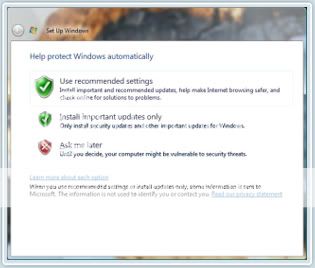
You can also change the automatic update settings anytime with the Windows Update control panel. And you can review and install Optional updates from the panel.
To do change the automatic update settings
1- Open Windows Update (click the Start
 button button, click All Programs, and then click Windows Update).
2- Select Change Settings and choose how you want Windows to install updates.
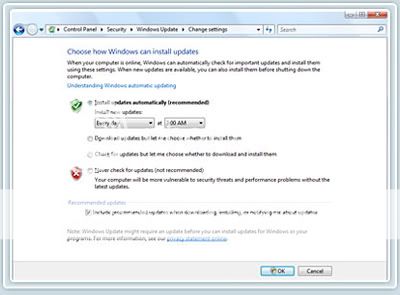
Switching from windows update to microsoft update
Do you have other Microsoft products besides Windows? Microsoft Update helps you update Windows and many other Microsoft programs that you've installed, such as Microsoft Office, all in one place.
To turn on Microsoft Update in Windows Vista
1- Open Windows Update (click the Start
button button, click All Programs, and then click Windows Update).2- Click the Get updates for more products button. (Note: If this button does not appear, it's likely you've already enabled Microsoft Update. This may happen when you installed other software programs like Microsoft Office 2007. In this case, the phrase "You receive updates: For Windows and other products from Microsoft Update" should appear near the bottom of the window.)
3- Follow the instructions to use Microsoft Update. Windows Update will begin to scan your PC
for available updates for Windows and other Microsoft products if you have automatic updating
turned on.
Installing optional updates and drivers
To install Optional updates, just select them from the list of updates that Windows finds for your PC. Optional updates are not installed automatically.
To install Optional updates
1- Open Windows Update (click the Start
button, click All Programs, and then click Windows Update).2- In the left pane, click Check for updates, and then wait while Windows looks for the latest updates for your PC.
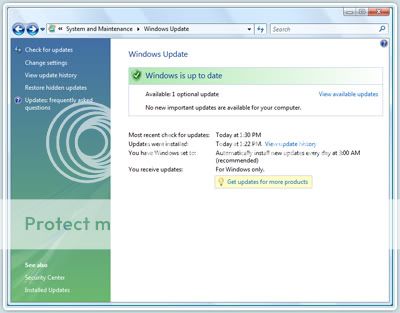
3- If any updates are found, click View available updates.
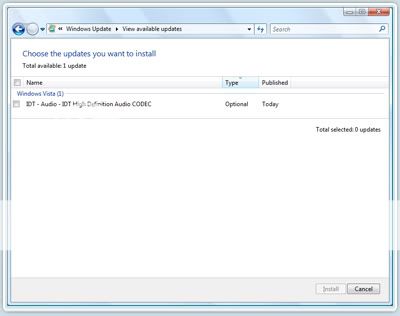
4- Select the Optional updates that you want, and then click Install. If you are prompted for an administrator password or confirmation, type the password or provide confirmation.
Note: If you are offered an Optional update that you don't want to install, you can simply right click and select Hide update and it will not appear on the list the next time you use the update service. If you discover that you do want it, simply select Restore Hidden Updates.
Help and How-to
Find help and how-to information about Windows Update in Windows Vista.
Source: Microsoft
Wednesday, September 9, 2009
Windows Update: Using Windows Update for Windows XP
The Windows Update service is a simple and reliable way to make sure your PC stays updated. Windows Update provides your PC with security and reliability updates, drivers, service packs, and feature updates. And with Windows Update, you can turn on Automatic Updates so it continuously checks for, downloads, and installs most updates automatically for you.
Note: To help prevent unexpected changes in how your PC works, Microsoft may sometimes ask you to accept an update before installing it, even if you have automatic settings selected.
Use Windows Update with Automatic Updates
The Windows Update service provides a single location for all the updates for your Windows XP–based PC. And by turning on the Automatic Updates feature, you can make sure your PC has High-priority updates including security and reliability updates, drivers, service packs, and feature updates. Automatic Updates routinely checks for the latest High-priority updates for your PC and then downloads and installs them for you automatically.
Note: The Automatic Updates feature will only check for High-priority updates. Automatic Updates will not download and install Optional updates. You will need to return to the Windows Update site regularly to select and install Optional updates.
If you don't have Automatic Updates turned on, Microsoft recommends you turn it on when you visit the Windows Update site.
To turn on Automatic Updates in Windows XP (SP2)
1- Click Start, and then click Control Panel.
2- Click Automatic Updates.
3- Choose Automatic (recommended).
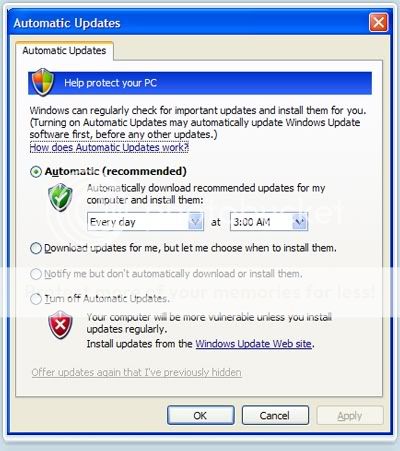
Note: You can also turn on Automatic Updates from the Windows Update website.
To update your PC now
1- Go to the Windows Update website.
2- Then, do one of the following:
- Click Express to check for High-priority updates. Windows Update will check for High-priority updates for your PC and display them for your review. Select the updates you want, and then click Install Updates.
- Click Custom to check for Optional updates. Windows Update will check for the latest updates for your PC.
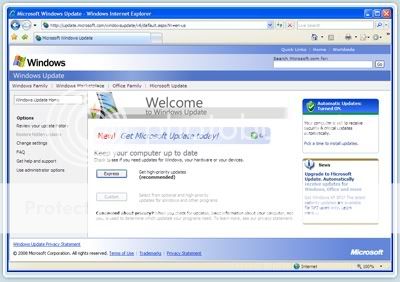
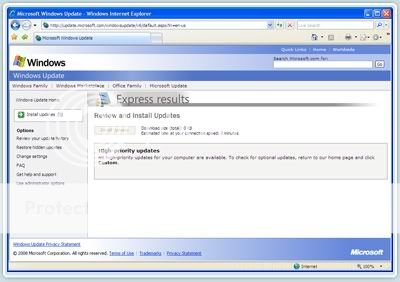
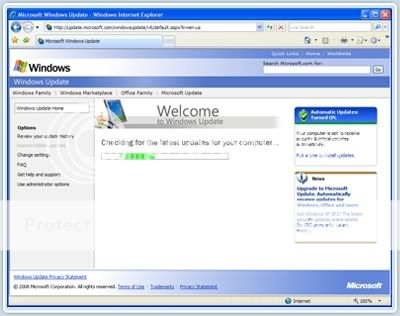
Note: If you click Custom, High-priority updates will be presented for your review. Select Optional updates from the left side of the web page by type: "Software, Optional" or "Hardware,Optional".
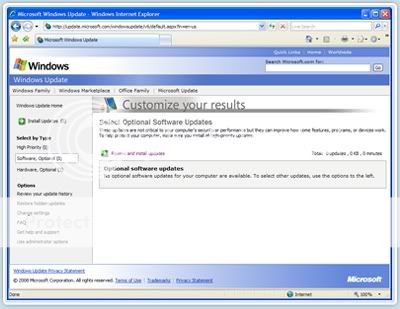
Remember to check the Windows Update website regularly for Optional updates as they are not offered through Automatic Updates.
Using Microsoft Update via Windows Update
Do you have other Microsoft products besides Windows? Turning on Microsoft Update helps you keep Windows and many other Microsoft programs, such as Microsoft Office, updated all in one place. If you've been using Windows Update with Automatic Updates turned on, Windows Update will continue to check for and install High-priority updates for your Windows XP –based PC.
Note: The first time you visit Microsoft Update, you will need to install the updating software on your PC.
To use Microsoft Update
1- Connect to the Internet and go to the Microsoft Update website or click Microsoft Update on any Microsoft.com site. (If you've already turned it on you'll skip straight to Step 7 .)
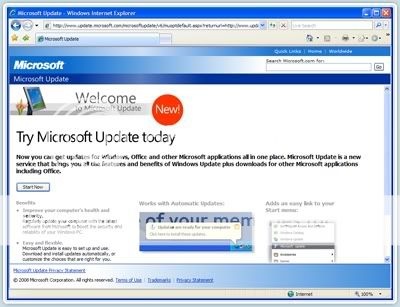
2- Click Start Now, and then click Continue.
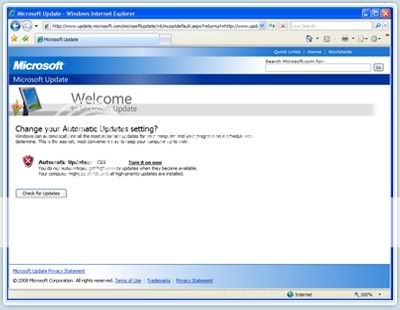
3- Automatic Updates is turned off by default. To turn on Automatic Updates, click Turn it on now.
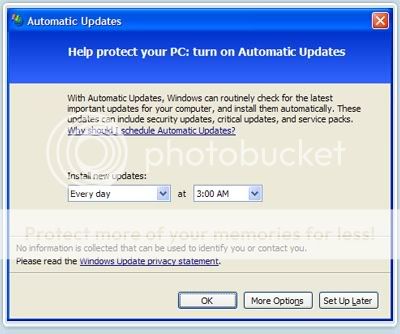
4- Select when you want the new updates installed. Click OK. Automatic Updates are now turned on.
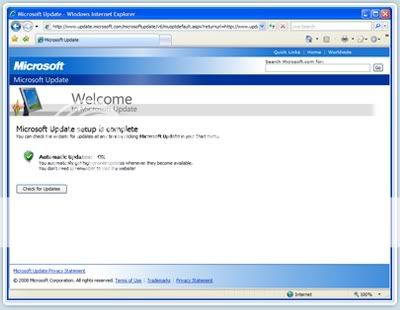
5- Click Check for Updates.
6- Now that you have set up the Microsoft Update service and turned on Automatic Updates, click Check for Updates.
7- Click either Express or Custom installation.
A. Get answers to questions you have about Microsoft Update.
B. Another opportunity to sign up for Automatic Updates.
- Express finds High-priority updates for your PC, which you install with one click.
- Custom finds both High-priority and Optional. You individually review and select the updates you want to install.
Tip: Find out how to keep earlier versions of Windows (Windows 2000, Windows ME, Windows 98, Windows 95, and Windows NT) and Microsoft Office versions up to date.
Source: Microsoft
Tuesday, September 8, 2009
How to remove a computer virus ?
Even for an expert, removing a virus from a computer can be a daunting task without the help of tools designed for the job.
Some viruses and other unwanted software (including spyware) are even designed to reinstall themselves after they have been detected and removed.
Fortunately, by updating your computer and using free, trial-period, or low-cost antivirus tools, you can help permanently remove (and prevent) unwanted software.
Steps to help remove a virus:
Visit Microsoft Update and install the latest updates.
If you currently use antivirus software, visit the manufacturer's Web site, update your software, and then perform a thorough scan of your computer. If you don't use antivirus software, subscribe to a service and scan your computer immediately.
Download, install, and run the Malicious Software Removal Tool. Note that this tool does not prevent viruses from infecting your system; it helps to remove existing viruses.
Why didn't my antivirus software work ?
It's crucial to keep your antivirus software current with the latest updates (usually called definition files) that help the tool identify and remove the latest threats.
In addition, not all antivirus tools are the same; if you find that the one you use isn't working to your satisfaction, you should do some research and try an alternative.
Note: What you might think is a virus could actually be spyware. Download and install Windows Defender or other antispyware software to see if that fixes the problem. Windows Defender comes with Windows Vista. If you use Windows XP SP2, you can download Windows Defender for no charge.
How do I install updates and antivirus software if I can't use my computer ?
It might be difficult to download tools or update your computer if your computer has a virus. In this case, use a friend's or other computer to download the tools to a disk, or get support from Microsoft.
Source: Microsoft
Some viruses and other unwanted software (including spyware) are even designed to reinstall themselves after they have been detected and removed.
Fortunately, by updating your computer and using free, trial-period, or low-cost antivirus tools, you can help permanently remove (and prevent) unwanted software.
Steps to help remove a virus:
Visit Microsoft Update and install the latest updates.
If you currently use antivirus software, visit the manufacturer's Web site, update your software, and then perform a thorough scan of your computer. If you don't use antivirus software, subscribe to a service and scan your computer immediately.
Download, install, and run the Malicious Software Removal Tool. Note that this tool does not prevent viruses from infecting your system; it helps to remove existing viruses.
Why didn't my antivirus software work ?
It's crucial to keep your antivirus software current with the latest updates (usually called definition files) that help the tool identify and remove the latest threats.
In addition, not all antivirus tools are the same; if you find that the one you use isn't working to your satisfaction, you should do some research and try an alternative.
Note: What you might think is a virus could actually be spyware. Download and install Windows Defender or other antispyware software to see if that fixes the problem. Windows Defender comes with Windows Vista. If you use Windows XP SP2, you can download Windows Defender for no charge.
How do I install updates and antivirus software if I can't use my computer ?
It might be difficult to download tools or update your computer if your computer has a virus. In this case, use a friend's or other computer to download the tools to a disk, or get support from Microsoft.
Source: Microsoft
Help prevent computer viruses
Nothing can guarantee the security of your computer 100 percent.
You can continue to improve your computer's security and decrease the possibility of infection by using a firewall, keeping your system up-to-date, maintaining a current antivirus software subscription, and following a few best practices.
Tip: Because no security method is guaranteed, it's important to back up critical files on a regular basis before you encounter a virus or other problems.
Steps to help avoid viruses:
Use an Internet firewall.
Note: Windows Vista and Windows XP with SP2 has a firewall already built-in and turned on by
default.
Visit Microsoft Update to verify your settings and check for updates.
Note: If you've installed the most recent version of Microsoft Office, Microsoft Update will
also update your Office programs.
Subscribe to antivirus software and keep it current.
Never open an e-mail attachment from someone you don't know.
Avoid opening an e-mail attachment from someone you know, unless you know exactly what the
attachment is. The sender may be unaware that it contains a virus.
Use a standard user account unless you need to use an Administrator Account. For more information, see Why use a standard user account instead of an administrator account.
What about spyware ?
Although spyware programs are different from viruses, some can behave like viruses and pose
similar and other risks. To help protect against spyware, use antispyware software such as Windows Defender. Windows Defender comes with Windows Vista. If you use Windows XP SP2, you can download Windows Defender for no charge.
Source: Microsoft
You can continue to improve your computer's security and decrease the possibility of infection by using a firewall, keeping your system up-to-date, maintaining a current antivirus software subscription, and following a few best practices.
Tip: Because no security method is guaranteed, it's important to back up critical files on a regular basis before you encounter a virus or other problems.
Steps to help avoid viruses:
Use an Internet firewall.
Note: Windows Vista and Windows XP with SP2 has a firewall already built-in and turned on by
default.
Visit Microsoft Update to verify your settings and check for updates.
Note: If you've installed the most recent version of Microsoft Office, Microsoft Update will
also update your Office programs.
Subscribe to antivirus software and keep it current.
Never open an e-mail attachment from someone you don't know.
Avoid opening an e-mail attachment from someone you know, unless you know exactly what the
attachment is. The sender may be unaware that it contains a virus.
Use a standard user account unless you need to use an Administrator Account. For more information, see Why use a standard user account instead of an administrator account.
What about spyware ?
Although spyware programs are different from viruses, some can behave like viruses and pose
similar and other risks. To help protect against spyware, use antispyware software such as Windows Defender. Windows Defender comes with Windows Vista. If you use Windows XP SP2, you can download Windows Defender for no charge.
Source: Microsoft
Computer virus symptoms
After you open and run an infected program or attachment on your computer, you might not realize that you've introduced a virus until you notice something isn't quite right.
Here are a few primary indicators that your computer might be infected:
Here are a few primary indicators that your computer might be infected:
- Your computer runs more slowly than normal
- Your computer stops responding or locks up often
- Your computer crashes and restarts every few minutes
- Your computer restarts on its own and then fails to run normally
- Applications on your computer don't work correctly
- Disks or disk drives are inaccessible
- You see unusual error messages
- You see distorted menus and dialog boxes
These are common signs of infection—but they might also indicate hardware or software problems that have nothing to do with a virus. Unless you run the Microsoft Malicious Software Removal Tool and install industry-standard, up-to-date antivirus software on your computer, there is no way to be certain if your computer is infected with a virus or not. If you don't have current antivirus software installed or if you're interested in installing a different brand, visit our Windows Marketplace for software from other companies.
Tip: Beware of messages warning you that you sent e-mail that contained a virus. This can indicate that the virus has listed your e-mail address as the sender of tainted e-mail. This does not necessarily mean you have a virus. Some viruses have the ability to forge e-mail addresses.
Related links
- Microsoft security Essentials
- What is a computer virus?
- How to remove computer virus?
- Help prevent computer viruses
Source: Microsoft
Monday, September 7, 2009
4 steps to protect your computer


2- Keep your operating system up-to-date. Learn about operating system updates.

3- Keep your antivirus software up to date. Learn about antivirus software.

4- Keep your antispyware technology up to date. Learn about antispyware technology.
About firewalls
A firewall helps protect your computer from hackers who might try to delete information, crash your computer, or even steal your passwords or credit card numbers.
About operating system updates
High priority updates are critical to the security and reliability of your computer. They offer the latest protection against malicious online activities. Microsoft provides new updates, as necessary, on the second Tuesday of the month.
About antivirus software
Viruses and spyware are two kinds of usually malicious software that you need to protect your computer against. You need antivirus technology to help prevent viruses, and you need to keep it regularly updated.
About antispyware technology
Viruses and spyware are two kinds of usually malicious software that you need to protect your computer against. You need antispyware technology to help prevent spyware, and you need to keep it regularly updated.
Related links
1- what is a firewall ?
2- what is a computer virus ?
3- what is a computer worm ?
4- what is spyware ?
Source: Microsoft
Friday, August 28, 2009
How to choose a firewall
Three basic types of firewalls are available for you to choose from:
To determine which type of firewall is best for you, answer these questions and record your answers:
1- How many computers will use the firewall ?
2- What operating system do you use? (This might be a version of Microsoft Windows, Apple Macintosh, or Linux.)
That's it. You are now ready to think about what type of firewall you want to use.
There are several options, each with its own pros and cons.
Windows Firewall (Windows Vista and Windows XP Service Pack 2 only)
If you use Windows Vista or Windows XP Service Pack 2 (SP2), you have a firewall built in and turned on by default.
To learn more about the Windows Firewall that comes with windows Vista and windows XP SP2, read understanding Windows Firewall.
Tip: If you haven't downloaded Service Pack 2, visit Microsoft Update to learn how to get it. If you are using Windows XP and you choose not to download Service Pack 2, you still have access to the Internet Connection Firewall (ICF) that's built into Windows XP, but you need to turn it on.
Note: The Windows Firewall and the Internet Connection Firewall are not available as a stand-alone package. They are also not available for other operating systems (for example, Apple Macintosh or Linux) or for versions of Windows other than Windows Vista and Windows XP.
Software firewalls
Software firewalls are a good choice for single computers, and they work well with Windows 98, Windows Me, and Windows 2000. (Windows Vista and Windows XP both have a built-in firewall, so an additional firewall is not necessary.)
Software firewalls are also available from other software companies. For special offers on antivirus and firewall packages, visit our Security software: Downloads and trials page.
PROS
- Does not require additional hardware.
- Does not require additional computer wiring.
- A good option for single computers.
CONS
- Additional coast: most software firewalls coast money.
- Installation and configuration might be required to get started.
- One copy is typically required for each computer.
Hardware routers
Hardware router are a good choose for home networks that will connect to the internet.
PROS
- Hardware routers usually have at least four network ports to connect multiple computer together.
- Provide firewall protection for multiple computers.
CONS
- Require wiring, which can clutter your desktop area
Wireless routers
If u have or plan to use a wireless network, you need a wireless router.
PROS
- Wireless routers allow you to connect, computers, portable computers, personal desktop assistants, and prints without writing.
- Wireless routers are excellent for connecting notebook computers to the internet and networks.
CONS
- Wireless devices broadcast information using radio singles that can be intercepted by someone outside of your home (if they have the right equipment).
- You might have to pray for extra equipment.3- Not all wireless routers come equipped with a built-in firewall, so you might have to purchase one separately.
Start using a firewall today
Connecting to the Internet can pose dangers to unwary computer users. Use a firewall to help reduce your risk.
Installing a firewall is just the first step toward safe surfing online. You can continue to improve your computer's security by keeping your software up to date, using antivirus software, and using antispyware software. Learn more about steps you can take to help protect your computer.
Related links
What is a Firewall?
Firewalls by windows version
Firewalls FAQ
Source: Microsoft
Wednesday, August 26, 2009
Firewalls in versions of Windows
A firewall helps protect your computer from hackers who might try to delete information, crash your computer, or even steal your passwords or credit card numbers. Depending on which operating system you have on your computer, you might already have a firewall and it might already be turned on for you.
A firewall is included in most Windows operating systems. To turn on or check your firewall settings, click the link that corresponds to the operating system you use.
Windows Vista
Windows Vista comes with Windows Firewall, a two-way firewall that is automatically turned on.
Note: You do not have to use Windows Firewall—you can install and run any firewall that you choose. Evaluate the features of other firewalls and then decide which firewall best meets your needs. If you choose to install and run another firewall, turn off Windows Firewall.
Windows XP service Pack 2
Windows XP SP2 comes with Windows Firewall automatically turned on. For more information about Windows Firewall, see Understanding Windows Firewall in Windows XP SP2.
Windows XP
Windows XP comes with Internet Connection Firewall, but you must turn it on to use it.
To turn on Internet Connection Firewall:
Point to Control Panel, double-click Network and Internet Connections, and then click Set up or change your home or small office network.
Follow the steps in the Network Setup Wizard to turn on the Internet Connection Firewall.
When you choose a configuration in the wizard that indicates that your computer is connected directly to the Internet, the Internet Connection Firewall is turned on.
Windows XP Service Pack 2 (SP2) and Windows Vista come with Windows Firewall automatically turned on. Visit Microsoft Update to download Windows XP SP2 for free. Visit the Windows Vista home page for more information about the newest operating system from Microsoft.
Windows 2000
To find out if you already have a firewall, click Start and then click All Programs, and then look for the word "firewall."
You might also see the name of a popular firewall manufacturer or package, including McAfee, Panda Software, Symantec (Norton), and others.
Windows Vista and Windows XP Service Pack 2 (SP2) both have firewalls built-in and turned on by default. Consider upgrading to Windows Vista for increased security.
Related links
How to choose a firewall ?
Firewalls by windows version
Firewalls FAQ
Source: Microsoft
A firewall is included in most Windows operating systems. To turn on or check your firewall settings, click the link that corresponds to the operating system you use.
Windows Vista
Windows Vista comes with Windows Firewall, a two-way firewall that is automatically turned on.
Note: You do not have to use Windows Firewall—you can install and run any firewall that you choose. Evaluate the features of other firewalls and then decide which firewall best meets your needs. If you choose to install and run another firewall, turn off Windows Firewall.
Windows XP service Pack 2
Windows XP SP2 comes with Windows Firewall automatically turned on. For more information about Windows Firewall, see Understanding Windows Firewall in Windows XP SP2.
Windows XP
Windows XP comes with Internet Connection Firewall, but you must turn it on to use it.
To turn on Internet Connection Firewall:
Point to Control Panel, double-click Network and Internet Connections, and then click Set up or change your home or small office network.
Follow the steps in the Network Setup Wizard to turn on the Internet Connection Firewall.
When you choose a configuration in the wizard that indicates that your computer is connected directly to the Internet, the Internet Connection Firewall is turned on.
Windows XP Service Pack 2 (SP2) and Windows Vista come with Windows Firewall automatically turned on. Visit Microsoft Update to download Windows XP SP2 for free. Visit the Windows Vista home page for more information about the newest operating system from Microsoft.
Windows 2000
To find out if you already have a firewall, click Start and then click All Programs, and then look for the word "firewall."
You might also see the name of a popular firewall manufacturer or package, including McAfee, Panda Software, Symantec (Norton), and others.
Windows Vista and Windows XP Service Pack 2 (SP2) both have firewalls built-in and turned on by default. Consider upgrading to Windows Vista for increased security.
Related links
How to choose a firewall ?
Firewalls by windows version
Firewalls FAQ
Source: Microsoft
Tuesday, August 25, 2009
What is a Firewall ?
 A firewall is a software program or piece of hardware that helps screen out hackers, viruses, and worms that try to reach your computer over the Internet.
- If you use a computer at home, the most effective and important first step you can take to help protect your computer is to turn on a firewall ...
- Windows XP SP2 or higher and Windows Vista have a firewall built-in and turned on by default.
- If you have more than one computer connected in the home, or if you have a small-office network, it is important to protect every computer. You should have a hardware firewall (such as a router) to protect your network, but you should also use a software firewall on each computer to help prevent the spread of a virus in your network if one of the computers becomes infected.
(If your computer is part of a business, school, or other organizational network, you should follow the policy established by the network administrator.)
Related links
How to choose a firewall ?
Firewalls by windows version
Firewalls FAQ
Source: Microsoft
Related links
How to choose a firewall ?
Firewalls by windows version
Firewalls FAQ
Source: Microsoft
What are Viruses, Worms, and Trojan horses ?
Viruses, worms, and Trojan horses are malicious programs that can cause damage to your computer and information on your computer. They can also slow down the Internet, and they might even use your computer to spread themselves to your friends, family, co-workers, and the rest of the Web. The good news is that with an ounce of prevention and some good common sense, you are less likely to fall victim to these threats.
Source: Microsoft
What is a Trojan horse ?
Just as the mythological Trojan horse appeared to be a gift, but turned out to contain Greek soldiers who overtook the city of Troy, today's Trojan horses are computer programs that appear to be useful software, but instead they compromise your security and cause a lot of damage. A recent Trojan horse came in the form of an e-mail that included attachments that claimed to be Microsoft security updates, but turned out to be viruses that attempted to disable antivirus and firewall software.
Trojan horse (n.) A computer program that appears to be useful but that actually does damage.
Trojan horses spread when people are lured into opening a program because they think it comes from a legitimate source. To better protect users, Microsoft often sends out security bulletins via e-mail, but they never contain attachments. We also publish all our security alerts on our Security Web site before we e-mail them to our customers.
Trojan horses can also be included in software that you download for free. Never download software from a source that you don't trust. Always download Microsoft updates and patches from Microsoft Windows Update or Microsoft Office Update.
Source: Microsoft
Trojan horse (n.) A computer program that appears to be useful but that actually does damage.
Trojan horses spread when people are lured into opening a program because they think it comes from a legitimate source. To better protect users, Microsoft often sends out security bulletins via e-mail, but they never contain attachments. We also publish all our security alerts on our Security Web site before we e-mail them to our customers.
Trojan horses can also be included in software that you download for free. Never download software from a source that you don't trust. Always download Microsoft updates and patches from Microsoft Windows Update or Microsoft Office Update.
Source: Microsoft
What is Spyware ?
Spyware is a general term used to describe software that performs certain behaviors, generally without appropriately obtaining your consent first, such as:
Spyware is often associated with software that displays advertisements (called adware) or software that tracks personal or sensitive information.
Trading tracking for services
That does not mean all software that provides ads or tracks your online activities is bad. For example, you might sign up for a free music service, but you "pay" for the service by agreeing to receive targeted ads. If you understand the terms and agree to them, you may have decided that it is a fair tradeoff. You might also agree to let the company track your online activities to determine which ads to show you.
What spyware does
Other kinds of spyware make changes to your computer that can be annoying and can cause your computer slow down or crash.
These programs can change your Web browser's home page or search page, or add additional components to your browser you don't need or want. They also make it very difficult for you to change your settings back to the way you had them.
Know what you're installing
The key in all cases is whether or not you (or someone who uses your computer) understand what the software will do and have agreed to install the software on your computer.
A common trick is to covertly install the software during the installation of other software you want such as a music or video file sharing program.
Whenever you install something on your computer, make sure you carefully read all disclosures, including the license agreement and privacy statement. Sometimes the inclusion of unwanted software in a given software installation is documented, but it might appear at the end of a license agreement or privacy statement.
There are a number of ways spyware or other unwanted software can get on your computer. To learn more about spyware, read How to help prevent spyware.
Related Links:
- Help prevent spyware
- Symptoms of spyware
- Remove spyware
- Download windows defender
Source: Microsoft
- Advertising
- Collecting personal information
- Changing the configuration of your computer
Spyware is often associated with software that displays advertisements (called adware) or software that tracks personal or sensitive information.
Trading tracking for services
That does not mean all software that provides ads or tracks your online activities is bad. For example, you might sign up for a free music service, but you "pay" for the service by agreeing to receive targeted ads. If you understand the terms and agree to them, you may have decided that it is a fair tradeoff. You might also agree to let the company track your online activities to determine which ads to show you.
What spyware does
Other kinds of spyware make changes to your computer that can be annoying and can cause your computer slow down or crash.
These programs can change your Web browser's home page or search page, or add additional components to your browser you don't need or want. They also make it very difficult for you to change your settings back to the way you had them.
Know what you're installing
The key in all cases is whether or not you (or someone who uses your computer) understand what the software will do and have agreed to install the software on your computer.
A common trick is to covertly install the software during the installation of other software you want such as a music or video file sharing program.
Whenever you install something on your computer, make sure you carefully read all disclosures, including the license agreement and privacy statement. Sometimes the inclusion of unwanted software in a given software installation is documented, but it might appear at the end of a license agreement or privacy statement.
There are a number of ways spyware or other unwanted software can get on your computer. To learn more about spyware, read How to help prevent spyware.
Related Links:
- Help prevent spyware
- Symptoms of spyware
- Remove spyware
- Download windows defender
Source: Microsoft
What is a computer Worm ?
A computer worm is a software program that is designed to copy itself from onecomputer to another, without human interaction. Unlike a computer virus, a worm can copy itself automatically.
Worms can replicate in great volume. For example, a worm can send out copies of itself to every contact in your e-mail address book, and then it can send itself to all of the contacts in their e-mail address books.
Some worms spread very quickly. They clog networks and can cause long waits for you (and everyone else) to view Web pages on the Internet.
You might have heard of specific computer worms, including the Sasser worm and the Blaster worm. The most recent worm is called the Conficker worm.
To help prevent infections by and to get rid of the Conficker worm and worms like it, visit the Windows Live safety scanner or the Malicious Software Removal Tool. If you have automatic updating turned on, the Malicious Software Removal Tool runs on your computer every month.
For more basic information about computer worms, see How to prevent computer worms and How to remove computer worms.
A worm, like a virus, is designed to copy itself from one computer to another, but it does so automatically. First, it takes control of features on the computer that can transport files or information. Once a worm is in your system, it can travel alone. A great danger of worms is their ability to replicate in great volume. For example, a worm could send out copies of itself to everyone listed in your e-mail address book, and their computers would then do the same, which causes a domino effect of heavy network traffic that can slow down business networks and the Internet as a whole. When new worms are unleashed, they spread very quickly. They clog networks and possibly cause a long wait for you (and everyone else) to view Web pages on the Internet.
Worm (n.) A subclass of virus. A worm generally spreads without user action and distributes complete copies (possibly modified) of itself across networks. A worm can consume memory or network bandwidth, which can cause a computer to crash.
Because worms don't need to travel via a "host" program or file, they can also tunnel into your system and allow somebody else to take control of your computer remotely. Recent examples of worms included the Sasser worm and the Blaster worm.
Source: Microsoft
Worms can replicate in great volume. For example, a worm can send out copies of itself to every contact in your e-mail address book, and then it can send itself to all of the contacts in their e-mail address books.
Some worms spread very quickly. They clog networks and can cause long waits for you (and everyone else) to view Web pages on the Internet.
You might have heard of specific computer worms, including the Sasser worm and the Blaster worm. The most recent worm is called the Conficker worm.
To help prevent infections by and to get rid of the Conficker worm and worms like it, visit the Windows Live safety scanner or the Malicious Software Removal Tool. If you have automatic updating turned on, the Malicious Software Removal Tool runs on your computer every month.
For more basic information about computer worms, see How to prevent computer worms and How to remove computer worms.
A worm, like a virus, is designed to copy itself from one computer to another, but it does so automatically. First, it takes control of features on the computer that can transport files or information. Once a worm is in your system, it can travel alone. A great danger of worms is their ability to replicate in great volume. For example, a worm could send out copies of itself to everyone listed in your e-mail address book, and their computers would then do the same, which causes a domino effect of heavy network traffic that can slow down business networks and the Internet as a whole. When new worms are unleashed, they spread very quickly. They clog networks and possibly cause a long wait for you (and everyone else) to view Web pages on the Internet.
Worm (n.) A subclass of virus. A worm generally spreads without user action and distributes complete copies (possibly modified) of itself across networks. A worm can consume memory or network bandwidth, which can cause a computer to crash.
Because worms don't need to travel via a "host" program or file, they can also tunnel into your system and allow somebody else to take control of your computer remotely. Recent examples of worms included the Sasser worm and the Blaster worm.
Source: Microsoft
Monday, August 24, 2009
What is a computer Virus ?
Computer viruses are small software programs that are designed to spread from one computer to another and to interfere with computer operation.
A virus might corrupt or delete data on your computer, use your e-mail programto spread itself to other computers, or even erase everything on your hard disk.
Viruses are often spread by attachments in e-mail messages or instant messaging messages. That is why it is essential that you never open e-mail attachments unless you knowwho it's from and you are expecting it.
Viruses can be disguised as attachments of funny images, greeting cards, or audio and video files.
Viruses also spread through downloads on the Internet. They can be hiddenin illicit software or other files or programs you might download.
To help avoid viruses, it's essential that you keep your computercurrent with the latest updates and antivirus tools, stay informed about recent threats, and that you follow a few basic rules when you surf the Internet, download files,and openattachments.
Once a virus is on your computer, its type or the method it used to get there is not asimportant as removing it and preventing further infection.
Concerned about worms? see what is a computer worm?
A virus is a piece of computer code that attaches itself to a program or file so it can spread from computer to computer. It infects as it travels. Viruses can damage your software, your hardware, and your files. Virus (n.) Code written with the express intention to replicate itself. A virus attaches itself to a host program and then attempts to spread from computer to computer. It might damage hardware, software, or information. Just as human viruses range in severity from Ebola to the 24-hour flu, computer viruses range from the mildly bothersome to the downright destructive. The good news is that a true virus does not spread without human action. Someone must share a file or send an e-mail to move it along.
A virus might corrupt or delete data on your computer, use your e-mail programto spread itself to other computers, or even erase everything on your hard disk.
Viruses are often spread by attachments in e-mail messages or instant messaging messages. That is why it is essential that you never open e-mail attachments unless you knowwho it's from and you are expecting it.
Viruses can be disguised as attachments of funny images, greeting cards, or audio and video files.
Viruses also spread through downloads on the Internet. They can be hiddenin illicit software or other files or programs you might download.
To help avoid viruses, it's essential that you keep your computercurrent with the latest updates and antivirus tools, stay informed about recent threats, and that you follow a few basic rules when you surf the Internet, download files,and openattachments.
Once a virus is on your computer, its type or the method it used to get there is not asimportant as removing it and preventing further infection.
Concerned about worms? see what is a computer worm?
A virus is a piece of computer code that attaches itself to a program or file so it can spread from computer to computer. It infects as it travels. Viruses can damage your software, your hardware, and your files. Virus (n.) Code written with the express intention to replicate itself. A virus attaches itself to a host program and then attempts to spread from computer to computer. It might damage hardware, software, or information. Just as human viruses range in severity from Ebola to the 24-hour flu, computer viruses range from the mildly bothersome to the downright destructive. The good news is that a true virus does not spread without human action. Someone must share a file or send an e-mail to move it along.
Saturday, August 22, 2009
Firewall FAQ
- What is a firewall ?
- Why do I need a firewall ?
- How can I tell if my computer already has a firewall ?
- How can I tell which version of Windows I'm running ?
- How do I start using the firewall in Windows Vista or Windows XP ?
- How does Windows Firewall work ?
- What else do I need besides a firewall ?
- Should I use a firewall if I have more than one computer in a home or small-office network ?
- Should I turn on Windows Firewall on all computers on my home network ?
- My computer is part of a large business, school, or organizational network—should I turn on the firewall ?
- I have Windows Vista. Can I use a firewall other than the built-in firewall ?
- Should I use both the built-in firewall and a software firewall from a different company ?
- Should I use Windows Firewall on a computer that is also behind a hardware firewall ?
- What does Windows Firewall protect against ?
- What doesn't Windows Firewall protect against ?
- Will a firewall protect my wireless network ?
- Some of my games and other programs seem to have stopped working after I turned on Windows Firewall. Why?
- I am unable to establish a Remote Assistance connection in Windows XP after turning on Windows Firewall, could this be related ?
What is a firewall ?
A firewall is a piece of software or hardware that helps screen out hackers, viruses, and worms that try to reach your computer over the Internet. If you are a home user or small-business user, using a firewall is the most effective and important first step you can take to help protect your computer.
A firewall is software or hardware that checks information coming from the Internet or a network, and then either blocks it or allows it to pass through to your computer, depending on your firewall settings.
A firewall can help prevent hackers or malicious software (such as worms) from gaining access to your computer through a network or the Internet. A firewall can also help stop your computer from sending malicious software to other computers.
The following illustration shows how a firewall works:

It is important to turn on your firewall and antivirus software before you connect to the Internet.
Why do I need a firewall ?
If your computer is not protected when you connect to the Internet, hackers can gain access to personal information on your computer. They can install code on your computer that destroys files or causes malfunctions. They can also use your computer to cause problems on other home and business computers connected to the Internet. A firewall helps to screen out many kinds of malicious Internet traffic before it reaches your computer.
Some firewalls can also help to prevent other people from using your computer to attack other computers without your knowledge. Using a firewall is important no matter how you connect to the Internet—with a dial-up modem, cable modem, or digital subscriber line (DSL or ADSL).
How can I tell if my computer already has a firewall ?
If you have Windows Vista or Windows XP Service Pack 2 (SP2) running on your computer, you can check to see if your firewall is turned on through the Windows Security Center:
- Click Start, and then click Control Panel.
- Click Security Center, and then click Windows Firewall.
If you have Windows XP, but you don't have Service Pack 2 running on your computer, you can download it by visiting Microsoft Update. You can also take the following steps to make sure the firewall is turned on:
- Click Start, and then click Control Panel.
- Click Network and Internet Connections, and then click Network Connections.
Tip: If the Network and Internet Connections category is not visible, click Switch to Category View in the upper left corner of the window. - Under the Dial-Up or LAN or High Speed Internet category, click the icon to select the connection that you want to help protect.
- In the task pane on the left, under Network Tasks, click Change settings of this connection (or right-click the connection you want to help protect, and then click Properties).
- On the Advanced tab, under Internet Connection Firewall, make sure the box is checked next to Protect my computer and network by limiting or preventing access to this computer from the Internet.If a check mark is in the box, the firewall is on. If the box is clear, the firewall is off and your computer is potentially vulnerable on the Internet.
If you have a different version of Windows, such as Windows 2000, Windows Millennium Edition, or Windows 98, you should obtain a hardware or software firewall from another company and install it.
You can check the manuals of your home networking devices, such as wireless access points or broadband routers, to determine if they include built-in hardware firewalls.
If you don't know if a software firewall is on your computer, you can check in the All Programs folder. Click Start, and then click All Programs. Look for a firewall program. Some common brand names for software firewalls for home users include McAfee, Symantec, and Tiny Personal Firewall.
How can I tell which version of Windows I'm running ?
If you don't know what operating system your computer is running, take the following steps:
You can check the manuals of your home networking devices, such as wireless access points or broadband routers, to determine if they include built-in hardware firewalls.
If you don't know if a software firewall is on your computer, you can check in the All Programs folder. Click Start, and then click All Programs. Look for a firewall program. Some common brand names for software firewalls for home users include McAfee, Symantec, and Tiny Personal Firewall.
How can I tell which version of Windows I'm running ?
If you don't know what operating system your computer is running, take the following steps:
- Click Start, and then click Run.
- In the Run dialog box, type winver. Click OK.
A dialog box appears that tells you which version of Windows software is installed on your computer.
How do I start using the firewall in Windows Vista or Windows XP ?
If you're running Windows Vista or Windows XP SP2, Windows Firewall is already turned on. If you're running Windows XP without SP2, you can download SP2 from Microsoft Update for free.
How does Windows Firewall work ?
Windows Firewall monitors all network traffic on the connections for which it is enabled. The firewall keeps track of all communications that have originated from your computer, and it prevents unsolicited traffic from reaching your computer.
If necessary, the firewall dynamically opens ports and allows your computer to receive traffic that you have specifically requested, such as a Web page for which you have clicked the address.
A "port" is a networking term that identifies the point at which a type of network traffic reaches your computer. The exact ports that you open depend on the type of traffic you want to send and receive.
If you have not requested the incoming traffic, Windows Firewall helps block it before it can reach your computer. For special uses, such as networking, hosting online games, or hosting your own Web server, you can select ports that you want to leave open. This allows others to make connections to your computer, but it can also reduce security.
Windows Firewall is part of Windows Vista, Windows XP SP2 Home Edition, and Windows XP SP2 Professional ...
What else do I need besides a firewall ?
A firewall will not make your computer completely safe. However, a firewall provides the most effective first line of defense.
You should install a firewall first, and then add other security measures, such as updating your operating system, installing antivirus software and antispyware software.
Should I use a firewall if I have more than one computer in a home or small-office network ?
Yes. If you have more than one computer in a home or small-office network, you should protect
every computer in the network.
Turning on Windows Firewall or another firewall on every connection will help prevent the spread of a virus from one computer to another in your network if one of your computers becomes infected. However, if you open an infected e-mail attachment, the firewall won't block it and it can infect your computer. You should install an antivirus program as well.
Should I turn on Windows Firewall on all computers on my home network ?
Yes. If you have multiple network connections on any of your computers, you should turn on the
firewall for each connection. If you're running Windows Vista or Windows XP SP2, Windows Firewall is turned on automatically and it should not interfere with common tasks like file and print sharing.
My computer is part of a large business, school, or organizational network—should I turn on the firewall ?
You should follow the policy established by the network administrator for your business, school, or organizational network.
In some cases, network administrators might configure all computers on the network so that you
cannot turn on the firewall while your computer is connected to the network. The check box to turn on the firewall in the Windows Security Center or in the Network Connection Properties dialog box is unavailable. In those cases, you should ask your network administrator for guidance on whether you need a firewall on your computer.
I have Windows Vista. Can I use a firewall other than the built-in firewall ?
Yes. Windows Vista and Windows XP users who want different features in a firewall may use a hardware firewall or a software firewall from another company.
Should I use both the built-in firewall and a software firewall from a different company ?
No. Running multiple software firewalls is unnecessary for typical home computers, home networking, and small-business networking scenarios. Using two firewalls on the same connection could cause issues with connectivity to the Internet or other unexpected behavior.
One firewall, whether it is the Windows Firewall or a different software firewall, can provide substantial protection for your computer.
Should I use Windows Firewall on a computer that is also behind a hardware firewall ?
Yes. You should keep Windows Firewall turned on for all computers in your home network. This helps prevent the spread of viruses or worms across your network if a computer is infected. A computer on the network could become infected through a separate Internet connection, such as one on a laptop that is used on your home network and on public networks. Or a virus could be introduced to a computer on your network by way of e-mail or software installed from a CD.
What does Windows Firewall protect against ?
Windows Firewall serves as the primary defense against a variety of computer worms that are transmitted over a network. A computer worm is similar to a virus, but is self-contained and can spread without the help of other programs. Windows Firewall helps to protect your computer by hiding it from external users and preventing unauthorized connections to your computer.
What doesn't Windows Firewall protect against ?
Windows Firewall in Windows Vista and Windows XP cannot protect against viruses that spread
through e-mail, such as Trojan horses, which masquerade as helpful or benign software and trick you into opening or downloading them.
To help protect against viruses, use antivirus software. The firewall cannot prevent spam or pop-up ads.
The firewall will not prevent access to an otherwise unsecured wireless network. However, the firewall helps to protect the computers on your network, so if an intruder were to gain access to your network, he or she could not access your personal computer.
Will a firewall protect my wireless network ?
A firewall will help protect a computer on a wireless network, but will not restrict access to the network itself. You should configure your wireless network to use a network key using either Wi-Fi Protected Access (WPA) or wired equivalent privacy (WEP). For more information, consult the manual for your wireless networking devices.
Some of my games and other programs seem to have stopped working after I turned on Windows Firewall. Why?
To work correctly, some programs need to have specific ports open so that traffic can pass through the Windows Firewall.
I am unable to establish a Remote Assistance connection in Windows XP after turning on Windows Firewall, could this be related ?
This can be an issue if you enabled the firewall after sending the Remote Assistance invitation. To work around this problem, you can create a new Remote Assistance invitation while Windows Firewall is enabled, and then send the new invitation to the expert.
Related links
How to choose a firewall ?
Firewalls by windows version
Firewalls FAQ
Source: Microsoft
How do I start using the firewall in Windows Vista or Windows XP ?
If you're running Windows Vista or Windows XP SP2, Windows Firewall is already turned on. If you're running Windows XP without SP2, you can download SP2 from Microsoft Update for free.
How does Windows Firewall work ?
Windows Firewall monitors all network traffic on the connections for which it is enabled. The firewall keeps track of all communications that have originated from your computer, and it prevents unsolicited traffic from reaching your computer.
If necessary, the firewall dynamically opens ports and allows your computer to receive traffic that you have specifically requested, such as a Web page for which you have clicked the address.
A "port" is a networking term that identifies the point at which a type of network traffic reaches your computer. The exact ports that you open depend on the type of traffic you want to send and receive.
If you have not requested the incoming traffic, Windows Firewall helps block it before it can reach your computer. For special uses, such as networking, hosting online games, or hosting your own Web server, you can select ports that you want to leave open. This allows others to make connections to your computer, but it can also reduce security.
Windows Firewall is part of Windows Vista, Windows XP SP2 Home Edition, and Windows XP SP2 Professional ...
What else do I need besides a firewall ?
A firewall will not make your computer completely safe. However, a firewall provides the most effective first line of defense.
You should install a firewall first, and then add other security measures, such as updating your operating system, installing antivirus software and antispyware software.
Should I use a firewall if I have more than one computer in a home or small-office network ?
Yes. If you have more than one computer in a home or small-office network, you should protect
every computer in the network.
Turning on Windows Firewall or another firewall on every connection will help prevent the spread of a virus from one computer to another in your network if one of your computers becomes infected. However, if you open an infected e-mail attachment, the firewall won't block it and it can infect your computer. You should install an antivirus program as well.
Should I turn on Windows Firewall on all computers on my home network ?
Yes. If you have multiple network connections on any of your computers, you should turn on the
firewall for each connection. If you're running Windows Vista or Windows XP SP2, Windows Firewall is turned on automatically and it should not interfere with common tasks like file and print sharing.
My computer is part of a large business, school, or organizational network—should I turn on the firewall ?
You should follow the policy established by the network administrator for your business, school, or organizational network.
In some cases, network administrators might configure all computers on the network so that you
cannot turn on the firewall while your computer is connected to the network. The check box to turn on the firewall in the Windows Security Center or in the Network Connection Properties dialog box is unavailable. In those cases, you should ask your network administrator for guidance on whether you need a firewall on your computer.
I have Windows Vista. Can I use a firewall other than the built-in firewall ?
Yes. Windows Vista and Windows XP users who want different features in a firewall may use a hardware firewall or a software firewall from another company.
Should I use both the built-in firewall and a software firewall from a different company ?
No. Running multiple software firewalls is unnecessary for typical home computers, home networking, and small-business networking scenarios. Using two firewalls on the same connection could cause issues with connectivity to the Internet or other unexpected behavior.
One firewall, whether it is the Windows Firewall or a different software firewall, can provide substantial protection for your computer.
Should I use Windows Firewall on a computer that is also behind a hardware firewall ?
Yes. You should keep Windows Firewall turned on for all computers in your home network. This helps prevent the spread of viruses or worms across your network if a computer is infected. A computer on the network could become infected through a separate Internet connection, such as one on a laptop that is used on your home network and on public networks. Or a virus could be introduced to a computer on your network by way of e-mail or software installed from a CD.
What does Windows Firewall protect against ?
Windows Firewall serves as the primary defense against a variety of computer worms that are transmitted over a network. A computer worm is similar to a virus, but is self-contained and can spread without the help of other programs. Windows Firewall helps to protect your computer by hiding it from external users and preventing unauthorized connections to your computer.
What doesn't Windows Firewall protect against ?
Windows Firewall in Windows Vista and Windows XP cannot protect against viruses that spread
through e-mail, such as Trojan horses, which masquerade as helpful or benign software and trick you into opening or downloading them.
To help protect against viruses, use antivirus software. The firewall cannot prevent spam or pop-up ads.
The firewall will not prevent access to an otherwise unsecured wireless network. However, the firewall helps to protect the computers on your network, so if an intruder were to gain access to your network, he or she could not access your personal computer.
Will a firewall protect my wireless network ?
A firewall will help protect a computer on a wireless network, but will not restrict access to the network itself. You should configure your wireless network to use a network key using either Wi-Fi Protected Access (WPA) or wired equivalent privacy (WEP). For more information, consult the manual for your wireless networking devices.
Some of my games and other programs seem to have stopped working after I turned on Windows Firewall. Why?
To work correctly, some programs need to have specific ports open so that traffic can pass through the Windows Firewall.
I am unable to establish a Remote Assistance connection in Windows XP after turning on Windows Firewall, could this be related ?
This can be an issue if you enabled the firewall after sending the Remote Assistance invitation. To work around this problem, you can create a new Remote Assistance invitation while Windows Firewall is enabled, and then send the new invitation to the expert.
Related links
How to choose a firewall ?
Firewalls by windows version
Firewalls FAQ
Source: Microsoft
Subscribe to:
Comments (Atom)
